
Hytale is now available, and players are thrilled to explore this amazing open-world game with its unique voxel art style. A great feature is the ability to customize the game – players can create their own modifications or download and install those made by other members of the community with just a few steps.
I’m so excited about all the possibilities with Hytale’s modding! If you’re like me and want to get the most out of it, this guide is perfect. It walks you through everything – how to find awesome mods and then actually get them working in your worlds. It’s really easy to follow, step by step, so even beginners can jump in and start customizing!
How To Download Mods for Hytale
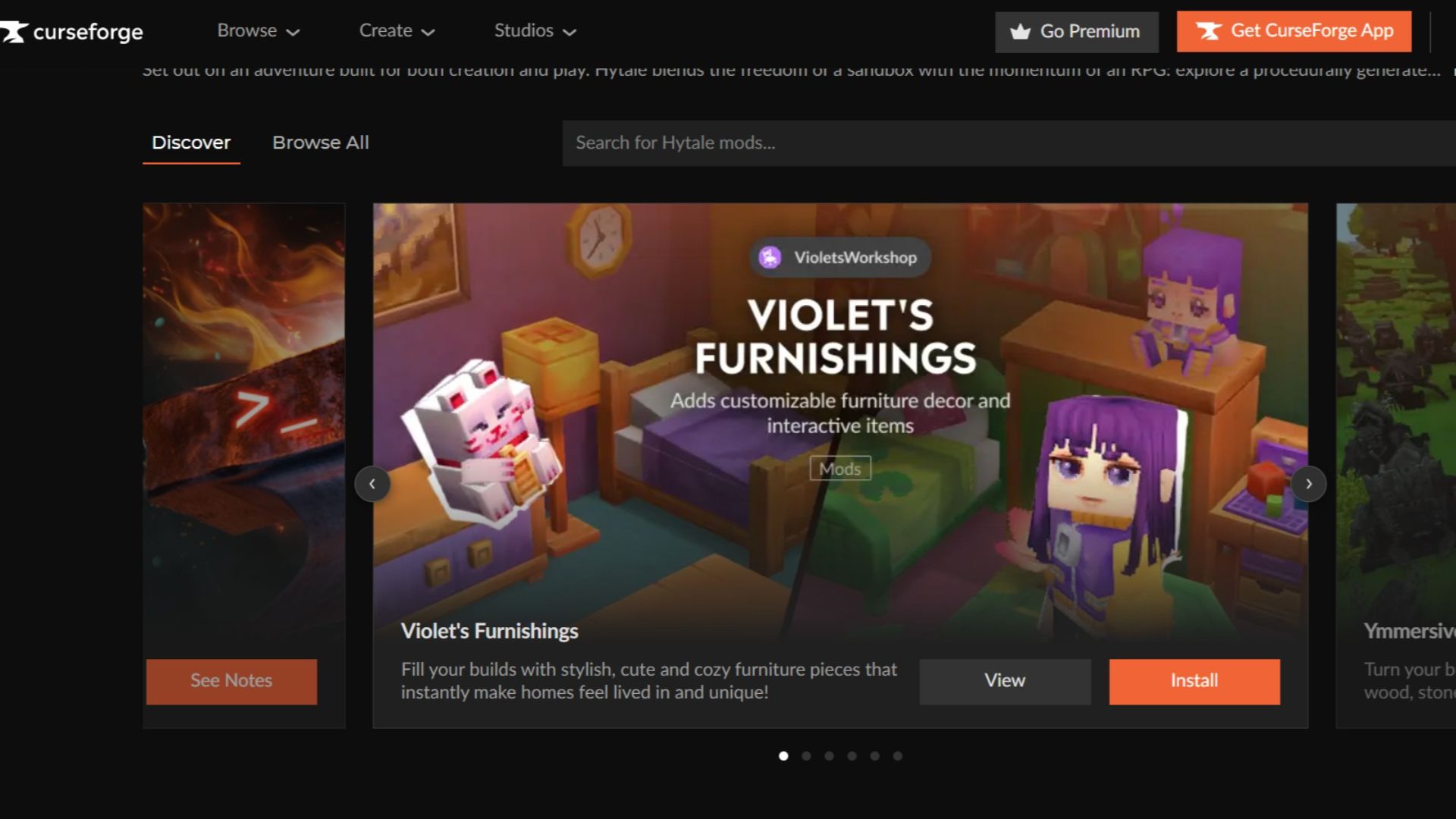
Hytale is a complete, self-contained program, meaning it has its own launcher and supports modifications (mods) fully. These mods come from CurseForge, a source outside of the game itself. There are two main ways to add mods: you can download them manually, or use an automated process. To install mods manually, players need to follow a specific set of steps to locate the game’s mod folder and place the downloaded files there.
- Go to any browser and type ‘CurseForge Hytale Mods,’ or click on the following link: CurseForge Hytale Mods.
- Now browse whatever mods you desire, and when you have selected one, save it in a New Folder in your system.
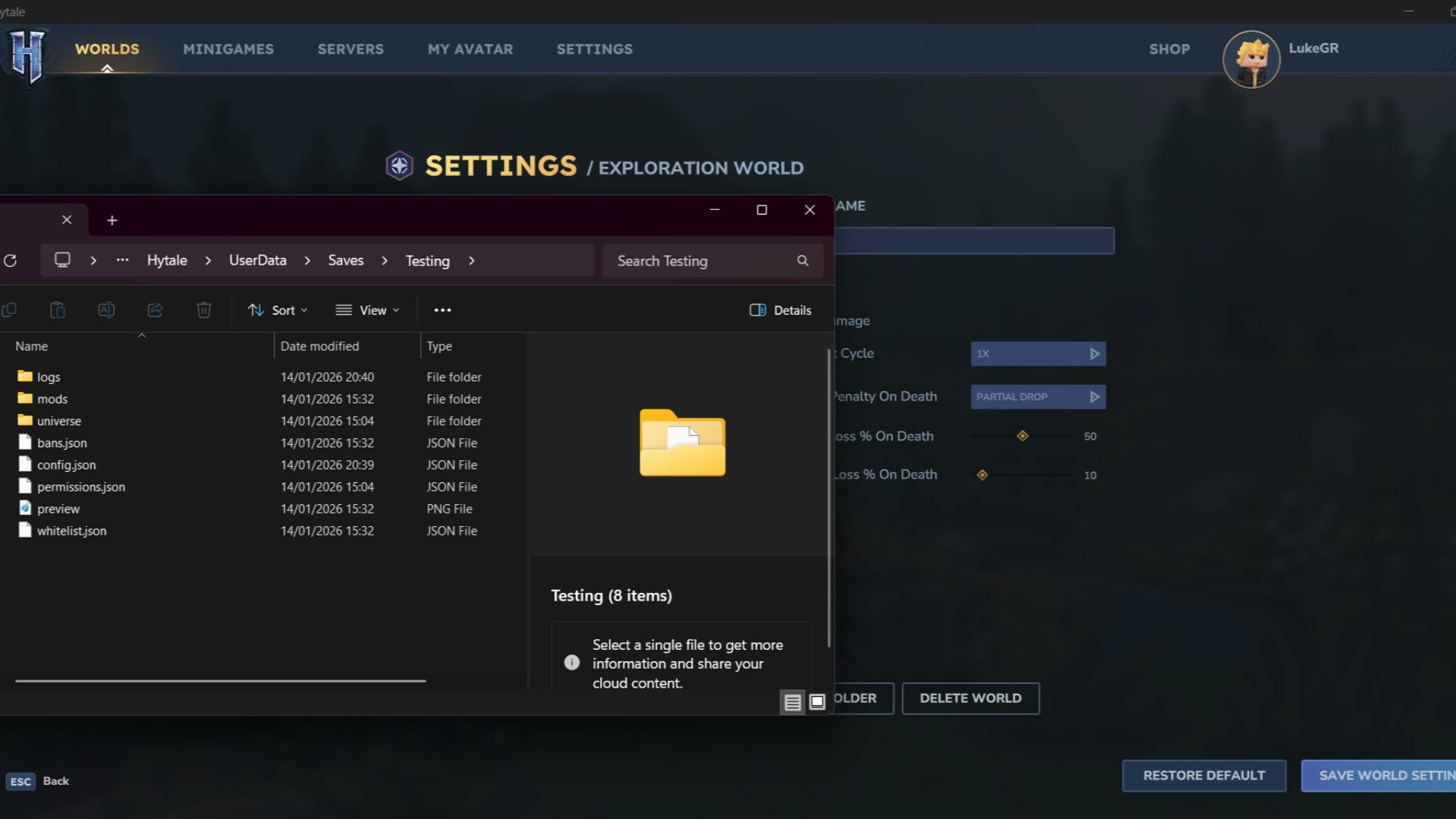
- Mods will be ZIP or RAR files, and now, players need to extract and dump these files in the Hytale Mod Folder.
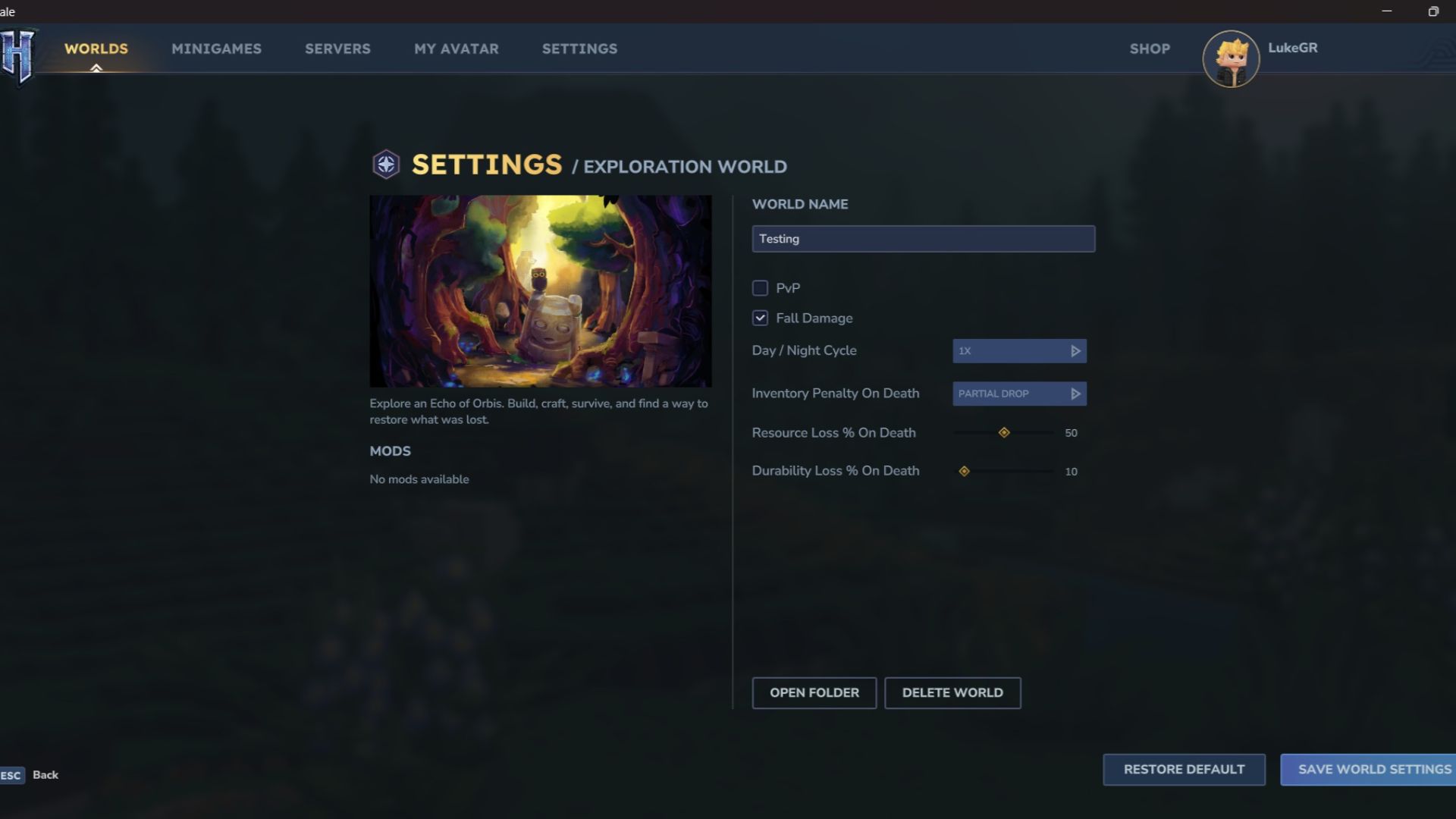
- To find it, open Hytale, then go to a created world.
- Select Mods, then Right Click to Edit World.
- Next, open the folder, and search for the Mods Folder inside the new pop-up window.
- Dump the files inside the folder.
To download mods using the CurseForge App, players need to follow these steps:
- Go to CurseForge, and look for an orange Icon on the top right corner of the screen.
- Select Download CurseForge App (It is recommended that players download the Standalone Version).
- Install the App, then log in to the App (or Continue as Guest).
- The App will automatically detect the games installed on your PC.
- Select Hytale, and then Browse for Mods.
- Now click download, and the app will automatically install any mod.
Mods can greatly enhance your game experience, offering everything from simple improvements like quality-of-life tweaks and automatic repairs, to completely new content. Players can add custom appearances, items, and even creatures to personalize and enjoy their worlds.
I recently found this awesome mod called ‘Advanced Item Info’ by Buuz135, and it’s been a game-changer. Basically, it adds a built-in interface where I can just search for any item in the game and instantly see all the details. Seriously, it’s super helpful whether you’re just starting out or you’ve been playing for ages – makes finding what you need so much easier!
Remember to look at the World Settings to see which mods are currently enabled in your world. Mods are automatically applied to any world you’re playing, so be mindful when adding them.
Mods are compatible with both Dedicated Servers and Hosted Worlds. To avoid problems when playing together, it’s best to tell your friends which mods are installed on the server before they join.
Read More
- All Skyblazer Armor Locations in Crimson Desert
- All Shadow Armor Locations in Crimson Desert
- How to Get the Sunset Reed Armor Set and Hollow Visage Sword in Crimson Desert
- Marni Laser Helm Location & Upgrade in Crimson Desert
- Best Bows in Crimson Desert
- All Helfryn Armor Locations in Crimson Desert
- All Golden Greed Armor Locations in Crimson Desert
- How to Craft the Elegant Carmine Armor in Crimson Desert
- Keeping Large AI Models Connected Through Network Chaos
- One Piece Chapter 1179 Preview: The Real Imu Arrives in Elbaf
2026-01-14 23:34