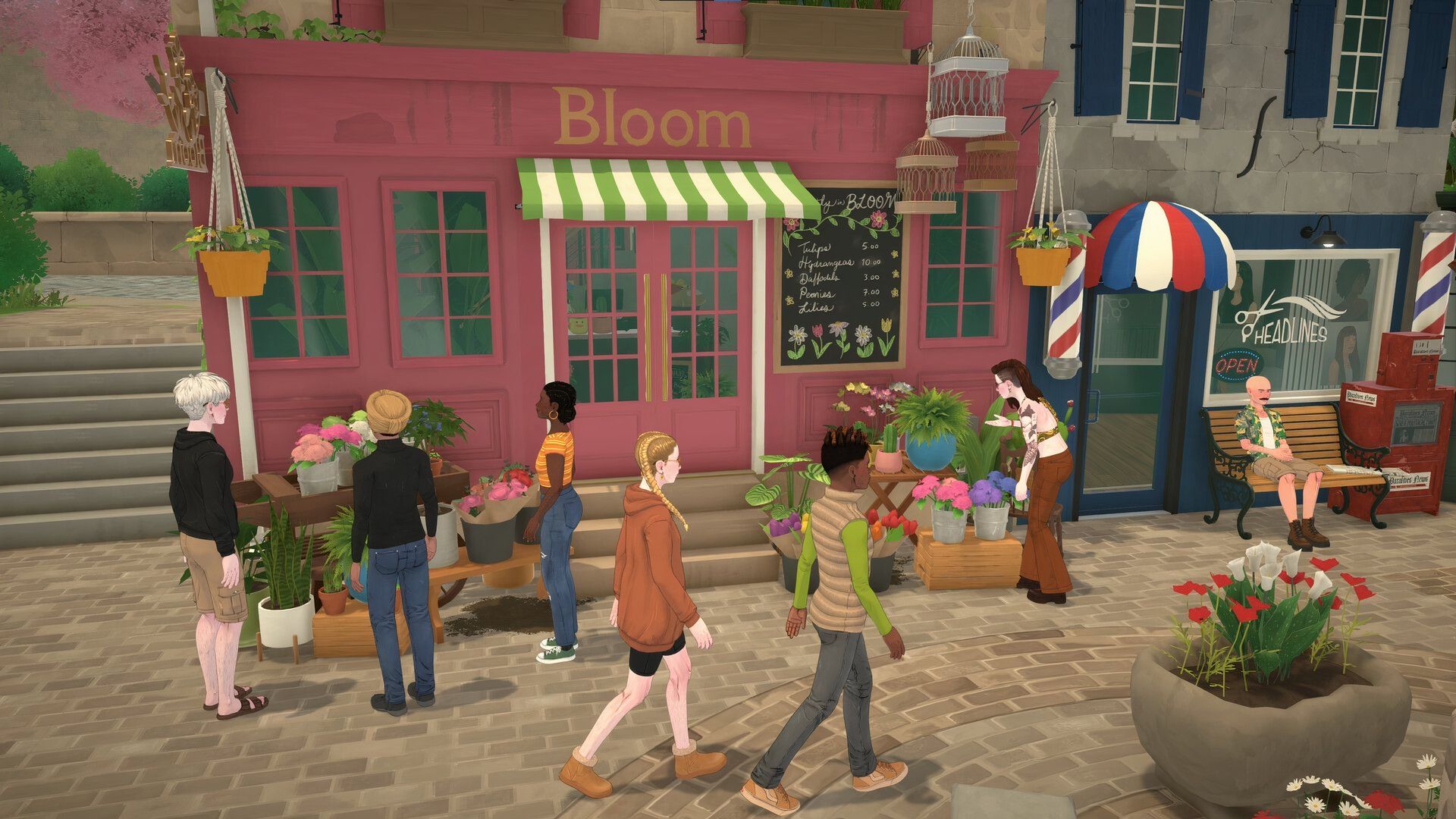
As a huge fan of life sims, I’m really excited about how easy it is to mod Paralives! Unlike a lot of other games, getting custom content – everything from new furniture and clothes to completely changing how the game plays – is super simple. Because it works with Steam Workshop, you can download and install stuff with just a few clicks. It’s a game-changer!
The great thing is, you can manage everything right from the Mods menu within Paralives. This means no more manually moving files or struggling with complicated installation processes to enjoy custom content!
How to Install Mods in Paralives
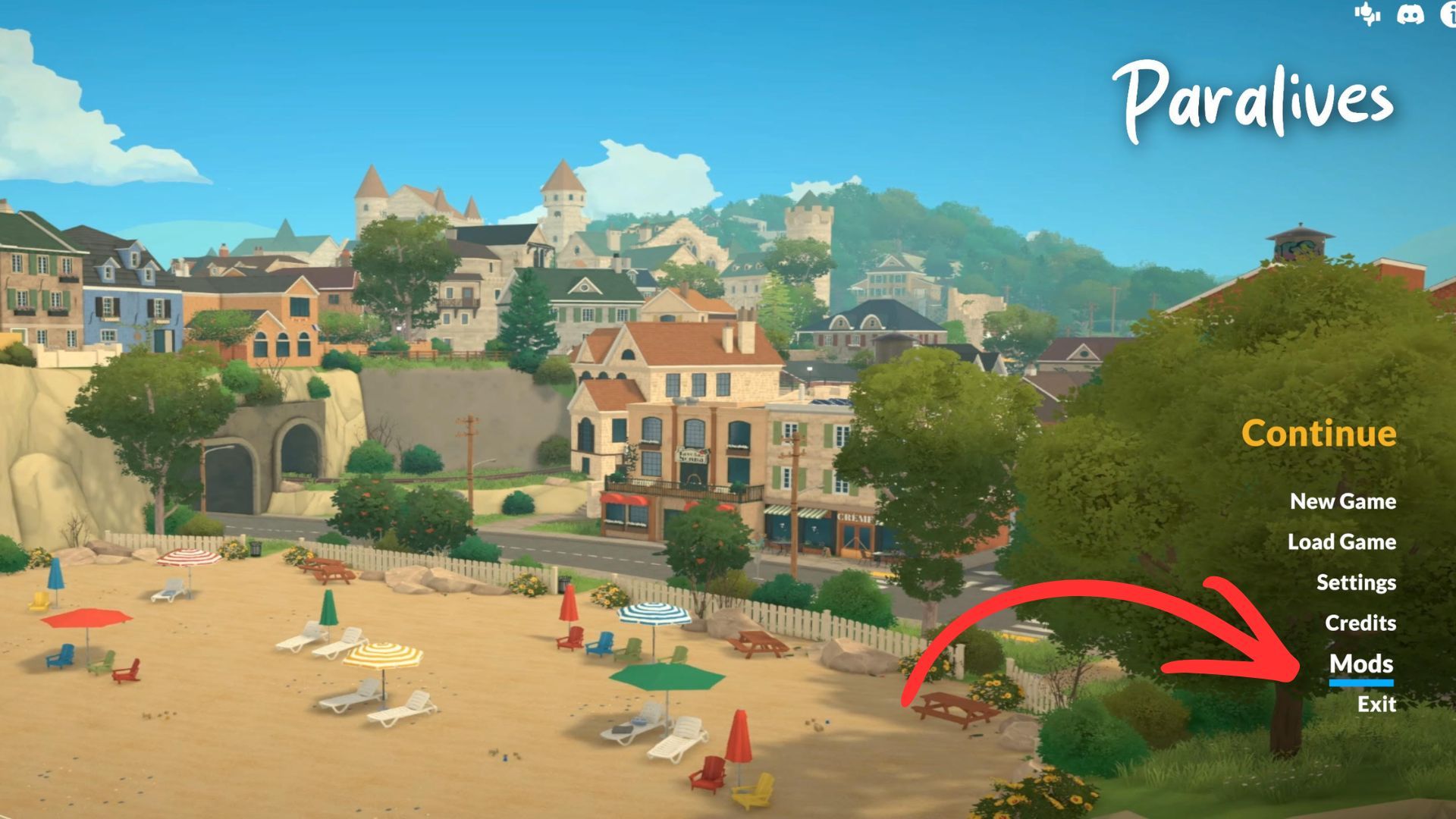
To begin installing mods for Paralives, launch the game and navigate to the Mods section on the main menu. From there, you can access the Steam Workshop right within the game and explore a variety of mods created by the community.
If you find a mod you want to use, just click the green plus sign to subscribe. Steam will download it for you, and Paralives will automatically add it to your game when it’s finished installing.
Next, return to the Mods menu and select the ‘My Mods’ tab. This is where you’ll find a list of all the mods you’ve installed, ready for you to use.
After adding big mods to Paralives, it’s best to restart the game. This ensures all the changes work as expected, as some might not show up properly until you reload.
Create Your Own Mods
Paralives lets players design and build their own modifications, or ‘mods,’ right within the game itself. The game features a ‘Create New Mod’ option in the Mods menu, allowing you to easily start creating custom content.
The Edit This Mod settings let you customize how the game plays and try out different features. You can change things like the world around you, pregnancies, and other simulated aspects to create a unique gameplay experience.
When you’ve finished creating your mod, you can easily upload it to the Steam Workshop so other players can enjoy it.
How to Enable and Disable Mods in Paralives
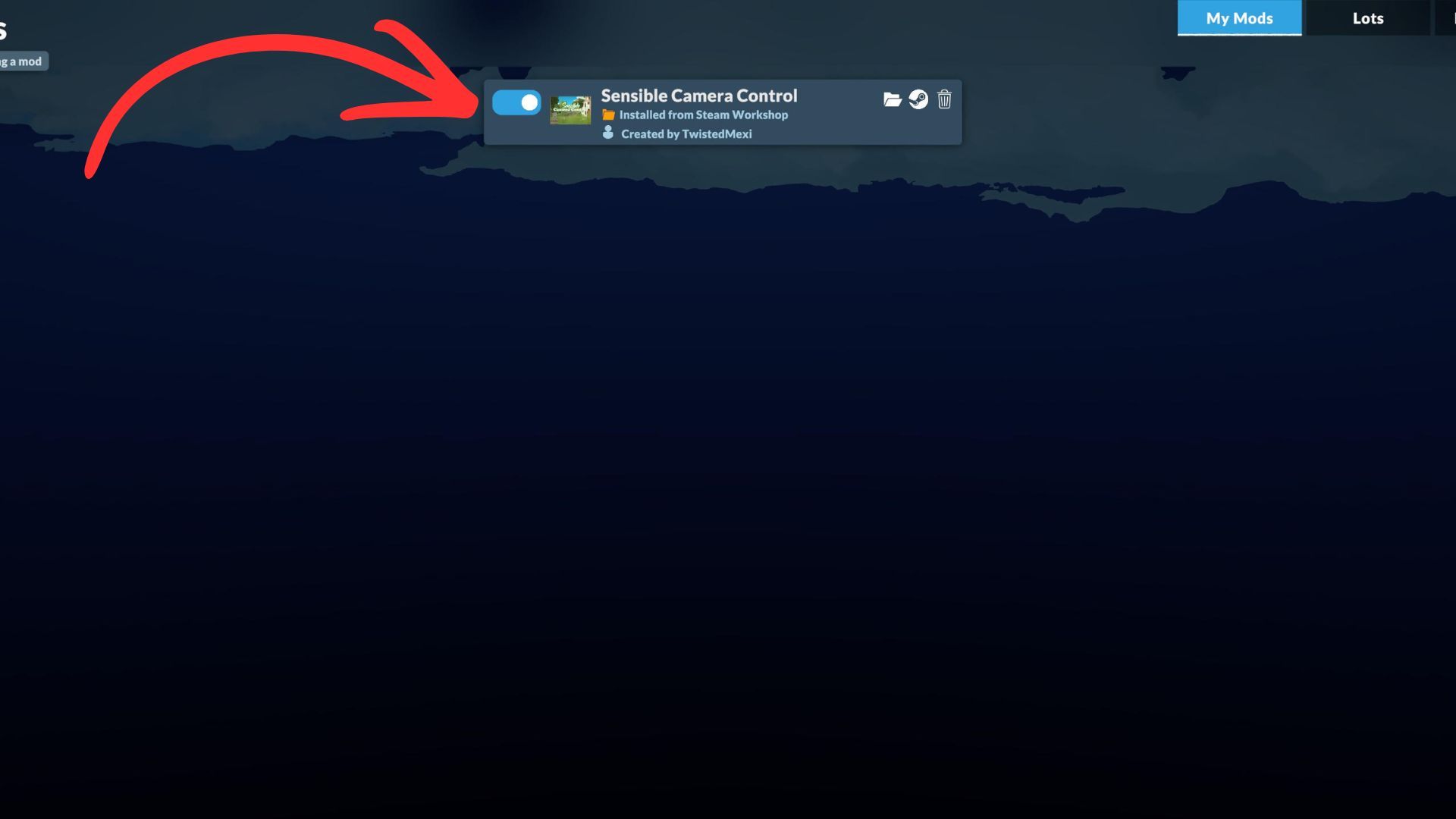
With Paralives, you can easily disable mods to try out different combinations or temporarily fix issues without needing to delete them.
To disable a mod, open the Mods menu and select ‘My Mods’. Find the mod you want to turn off, then click the blue toggle button that appears on the left. This will disable the mod without uninstalling it, and you can easily re-enable it by clicking the toggle again.
This tool is particularly helpful for figuring out why the game crashed or identifying any problems between different modifications you’ve installed.
It’s a good idea to back up your game save before turning off big mods that change how the game works. These mods can impact things like relationships, jobs, pregnancies, and the game world itself, and removing them while you’re playing can sometimes cause issues.
How to Delete Mods in Paralives
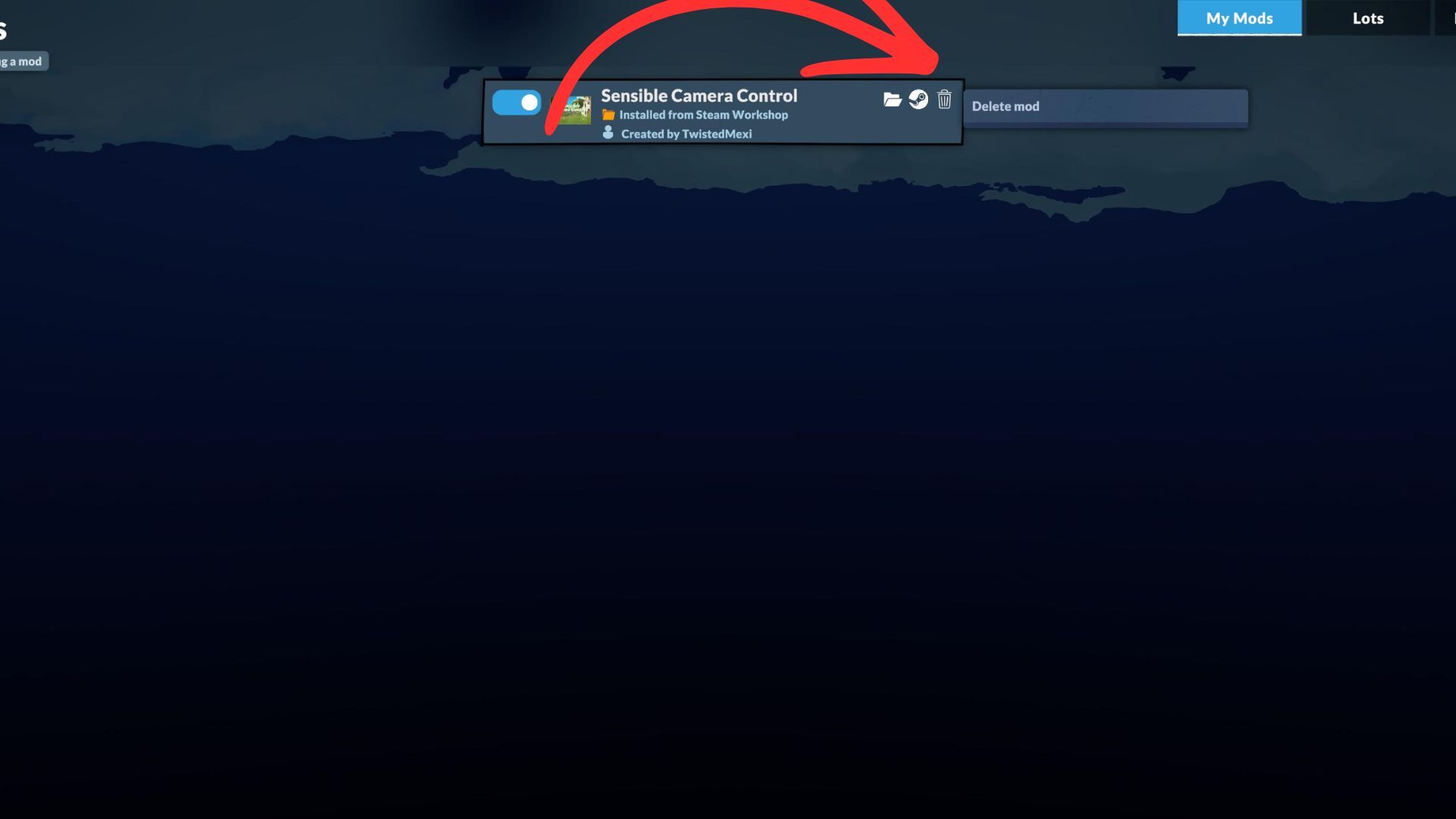
Getting rid of mods completely is super simple! Just go to the Mods tab, then click on ‘My Mods’, and you’ll find the mod you want to uninstall. It’s a breeze!
To remove a mod, click the white trash can icon next to its entry at the top right. This will delete it from your game. You can always re-download and reinstall it later from the Steam Workshop if you want it back.
FAQs
Do Paralives mods require manual installation?
No. Most mods install automatically through the Steam Workshop after you subscribe to them.
Where are Paralives mods stored?
You can locate installed mod files through the folder icon inside the Mods menu.
Can you use multiple mods at once?
Yes, Paralives allows you to use several mods simultaneously. However, mods can sometimes cause issues if they alter the same things in the game.
Read More
- Forza Horizon 6: Find the Ohtani Treasure Chest Location
- NTE Drift Guide (& Best Car Mods for Drifting)
- LEGO Batman Legacy of the Dark Knight Batcave Minikits & WayneTech Caches
- Sega’s “Super Game” is Said to Release Next Month, But Nothing is Known About It
- Skyblivion Gets Encouraging Development Update
- How to Open Locked Door in Tenryu River in Nioh 3 (Dirty Key)
- God of War Shadow Drops New Game and Confirms Greek Trilogy Remake
- New Steam Game is Like Pokemon If It Were a Sci-fi Shooter
- GameRant Daily Crossword (February 10, 2026)
- Dead as Disco Best Songs (Clear Beats & Stable BPMs)
2026-05-30 18:04