The Sims 4 has been a popular game for over ten years, with constant updates and improvements. However, a large number of downloadable content packs, combined with the game’s tendency to be heavily modified by players, can sometimes lead to errors and crashes.
It’s common for players to experience crashes or freezes while playing games. Because The Sims 4 doesn’t automatically save your game, players often worry about losing progress, particularly after playing for a long time.
How to Save When The Sims 4 Freezes
Many players of The Sims have found themselves staring at a loading screen, wondering if they’ll have to replay a significant amount of time due to not saving recently. While sometimes the game loads successfully, allowing a quick save, more often it either crashes completely or freezes, requiring a restart.
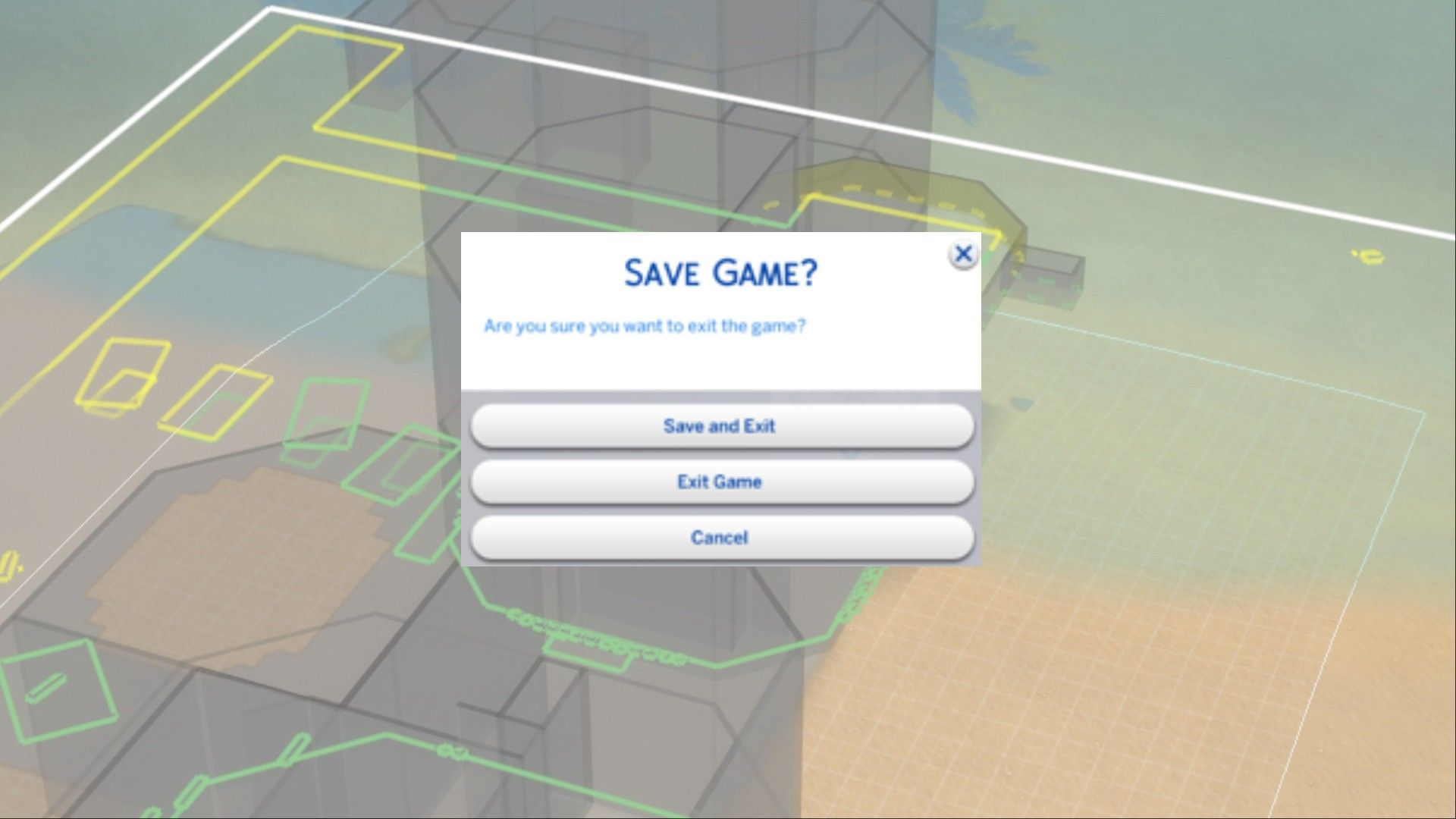
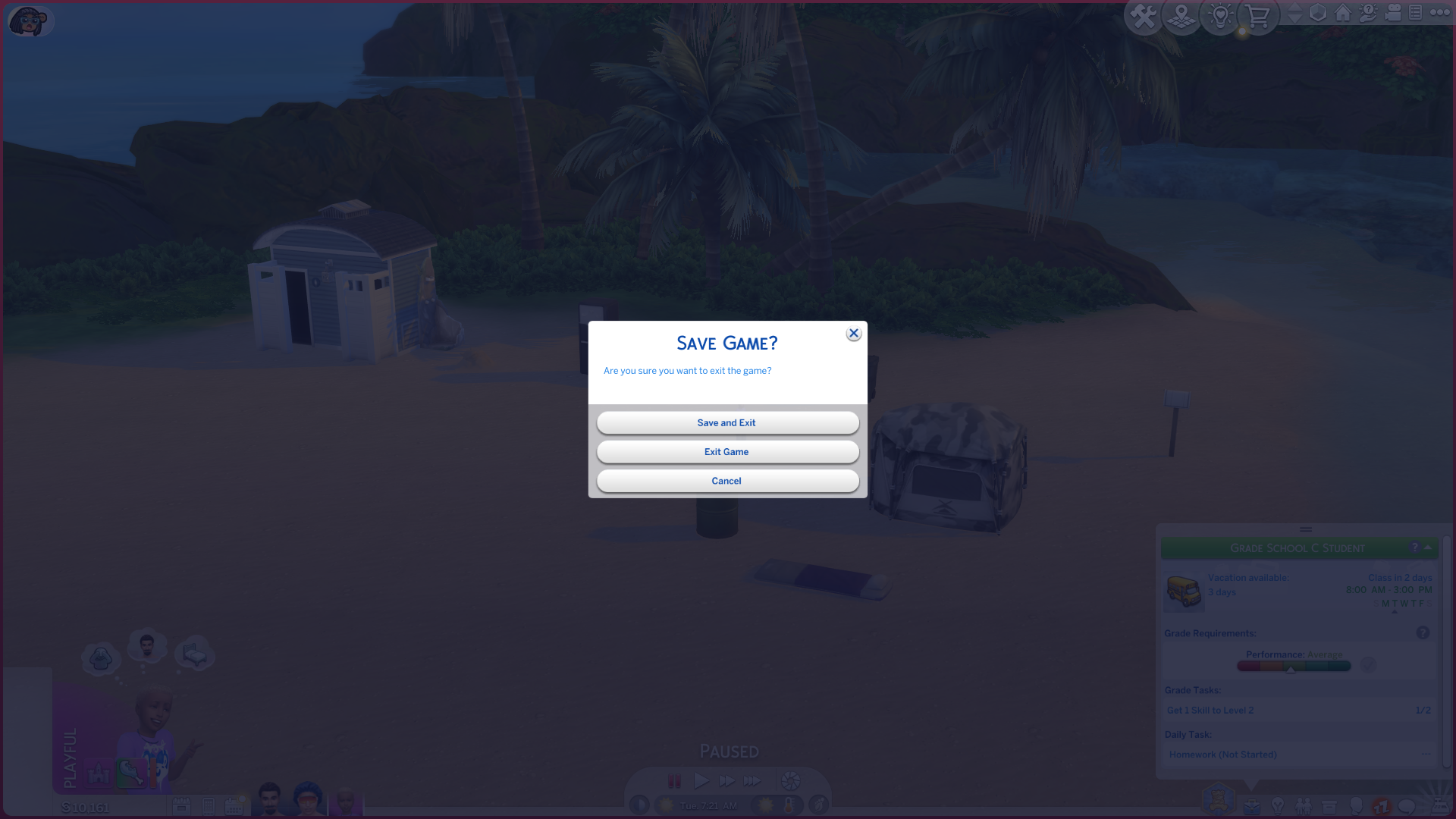
A lot of Sims 4 players don’t know you can save your game even when it freezes. If the game gets stuck, try pressing Alt + F4. This should force the game to close and bring up a menu asking if you want to save. If Alt + F4 doesn’t work, try holding down the Fn key at the same time.
You can also manually bring up the Save menu by right-clicking the Sims 4 icon in your taskbar and selecting ‘Close Window’.
How to Prevent Freezing and Crashing in The Sims 4
No gamer wants their game to freeze or crash, and thankfully, there are steps you can take to reduce those frustrating moments in The Sims 4. Here’s a look at the common causes of freezing and crashing, and how to prevent them.
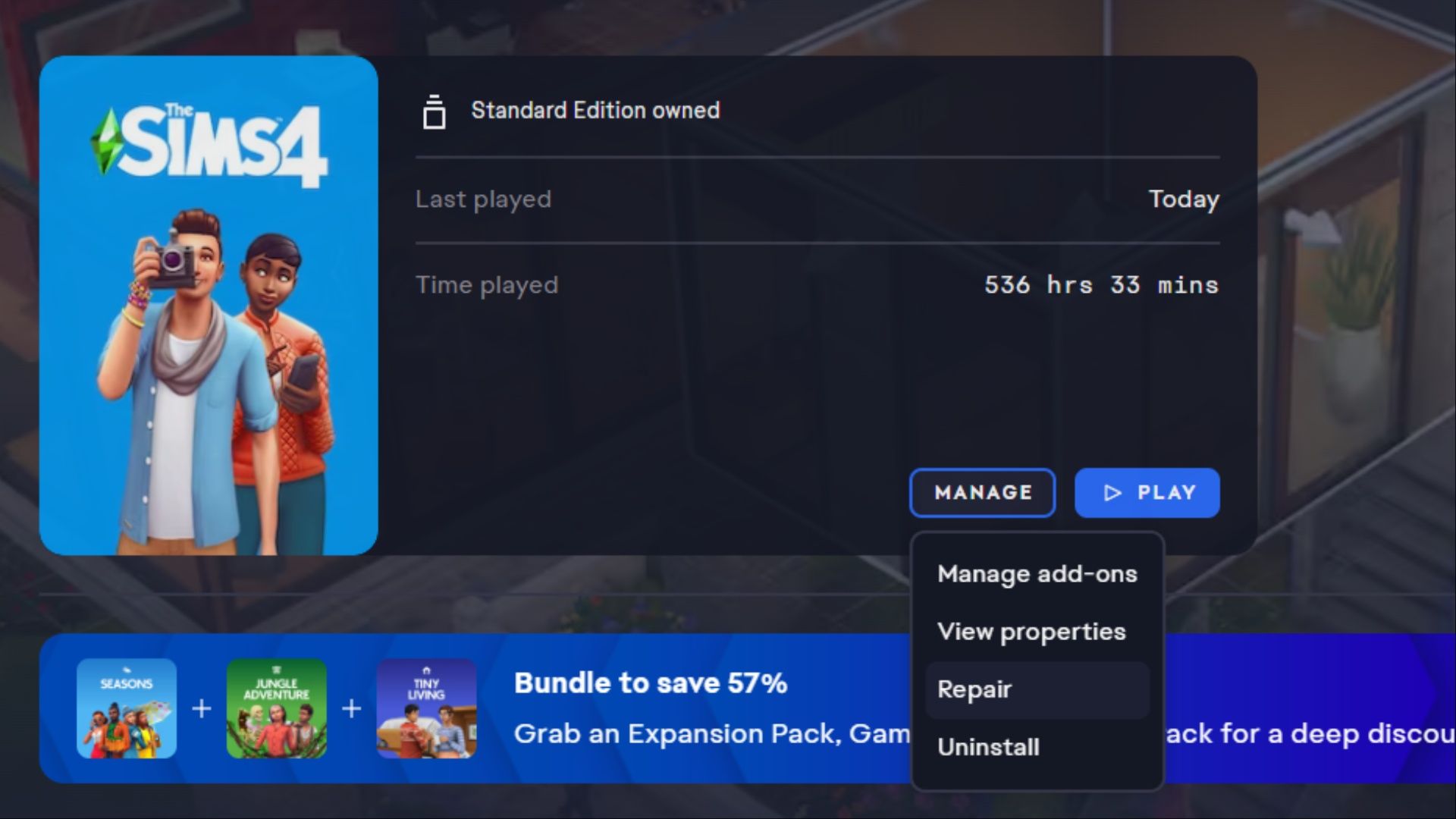
- Corrupt game files: It is possible that some of the game files could be corrupt, due to being moved or a recent update. To solve this issue, players have to open the EA App, select The Sims 4, click Manage and then Repair. This will go over the base game and expansion packs files and repair them one by one.
- Corrupted cache data: The Sims 4 stores some information in the cache so it is able to load faster. Updating and changing mods could corrupt it. Players should delete their Sims 4 cache every now and then to prevent this from happening. They can delete their Sims 4 cache by opening the Electronic Arts tab on their computer, entering the The Sims 4 tab, and then deleting a file called “localthumbcache.package“.
- Outdated or corrupted mod files: Players should update their mods whenever there is a new patch for The Sims 4. Not doing so could lead to issues with the game.
Read More
- All Skyblazer Armor Locations in Crimson Desert
- One Piece Chapter 1180 Release Date And Where To Read
- How to Get the Sunset Reed Armor Set and Hollow Visage Sword in Crimson Desert
- All Shadow Armor Locations in Crimson Desert
- Marni Laser Helm Location & Upgrade in Crimson Desert
- All Golden Greed Armor Locations in Crimson Desert
- All Helfryn Armor Locations in Crimson Desert
- How to Beat Stonewalker Antiquum at the Gate of Truth in Crimson Desert
- All Icewing Armor Locations in Crimson Desert
- Black Sun Shield Location In Crimson Desert (Buried Treasure Quest)
2025-12-28 05:34