
Tomodachi Life: Living the Dream has a really popular concept – players create their own characters (Miis) and watch them live and interact in funny and unexpected ways. However, Nintendo made it surprisingly tricky to share screenshots and videos from the game with friends online or through social media by removing the direct upload feature from the Nintendo Switch App. Luckily, there are still a few ways to share your favorite moments from the game!
How to Share Screenshots and Video Clips in Tomodachi Life Living the Dream
You can share screenshots and videos from Tomodachi Life: Living the Dream in a couple of ways: by connecting your Switch 2 to your computer with a USB-C cable, or by saving the files to a MicroSD Express card and then using that card on another device.
Sharing Screenshots and Video Clips via USB-C Cable
The simplest way to transfer screenshots and videos from your Switch 2 to a computer is with a USB-C cable. Just plug one end into the port on the bottom of the Switch 2 and the other into your computer.
After completing that step, power on your Switch 2. Then, navigate to System Settings – you’ll see a cogwheel icon – and choose Data Management from the menu on the side.
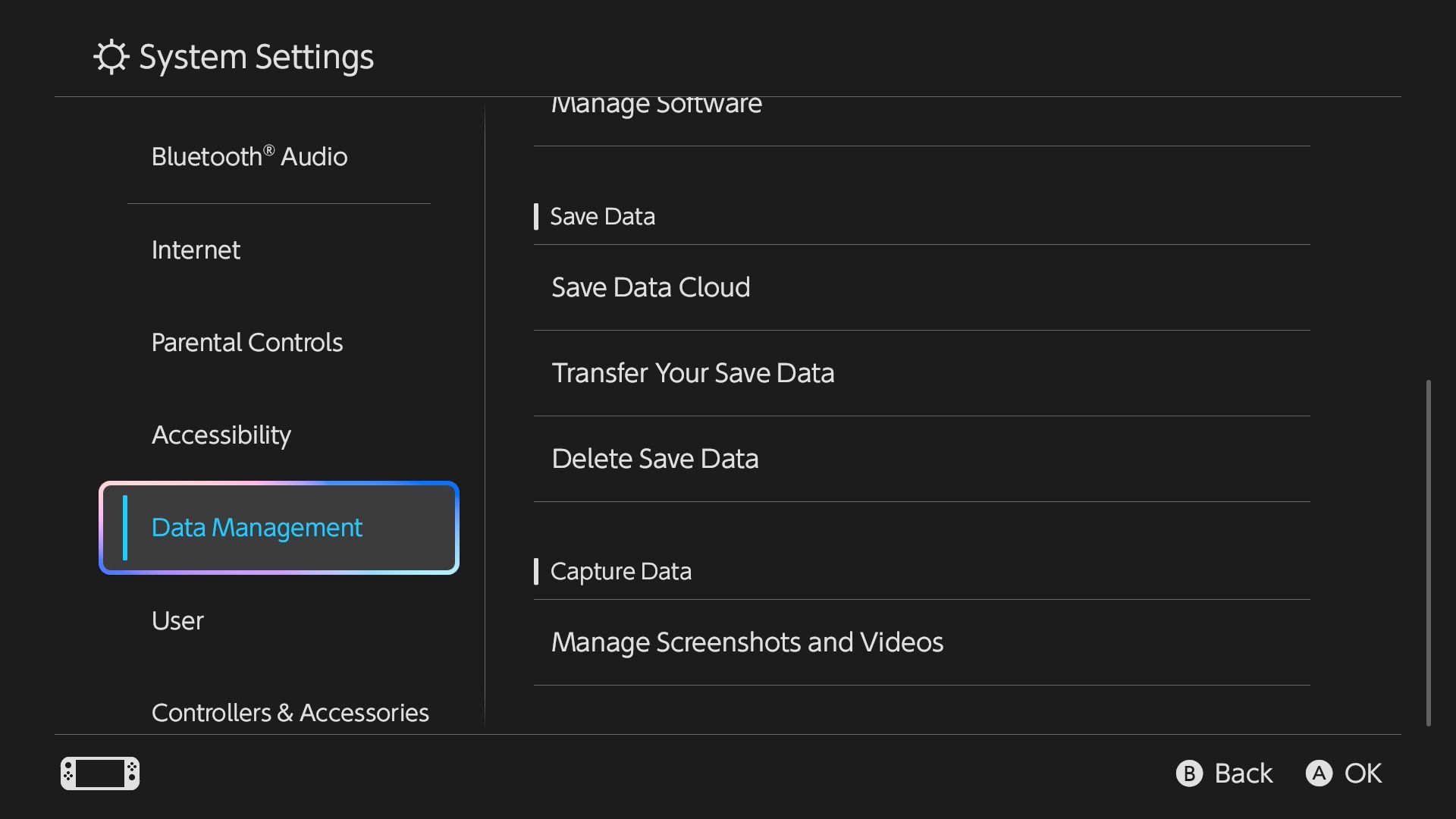
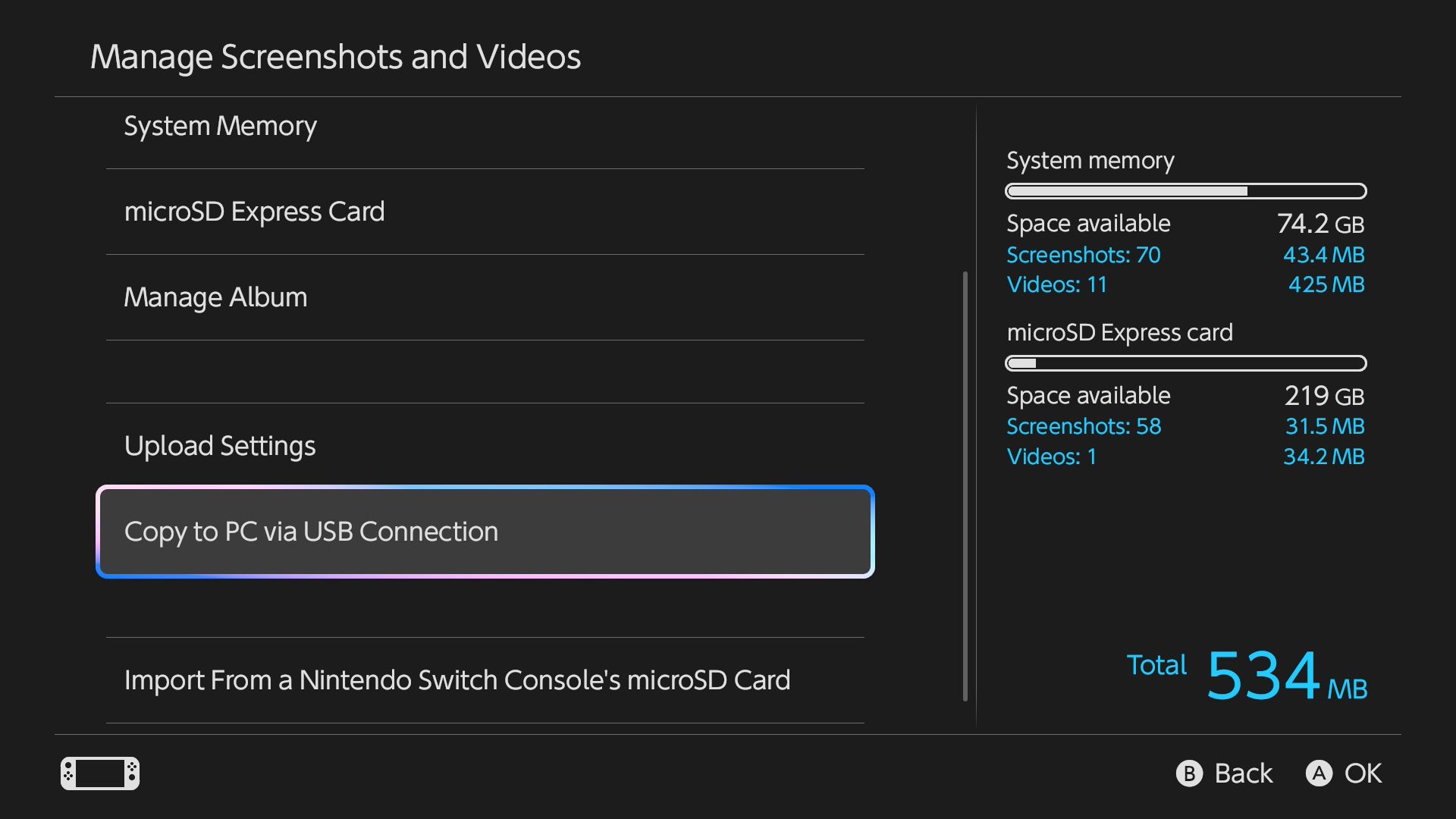
To transfer screenshots and videos, go to the Data Management menu and choose ‘Manage Screenshots and Videos.’ Scroll down until you find ‘Copy to PC via USB Connection’ and select it. On your Windows computer, your Nintendo Switch 2 should appear as a drive under ‘Devices and Drives.’ Your Switch 2 will then let you know it’s connected. Don’t press any buttons on your Switch 2 while this message is showing, or the connection to your computer will be lost.
To get your screenshots and videos, simply open the “Switch 2” option on your computer, then navigate to the “Tomodachi Life: Living the Dream” folder. You’ll find everything there – just copy and paste it to a folder on your PC!
Once the files have finished transferring, choose the disconnect option on your Switch 2, then unplug the USB-C cable.
Screenshots from the game will always be saved at 720p, even if you’re playing on a TV or in handheld mode. This is a bit surprising, considering Nintendo said the game would show graphics in 1080p when played as a handheld.
Transferring Screenshots and Video Clips via MicroSD Express Card
If you have a MicroSD Express card, you can save screenshots and video clips to it. Just make sure the card is inserted into your console, then go to the ‘Album’ option on the home screen.
Choose the screenshot or video you’d like to move, then press the ‘A’ button to open it. Press ‘A’ again to bring up the menu. Select ‘Copy to microSD Express Card’ and wait for the transfer to complete—it’s very quick for photos!
Remove the microSD Express Card from your Switch 2 – it’s located behind the stand on the right side. Then, put the card into a microSD card reader and plug the reader into your computer. You should now be able to view your screenshots and videos.
Read More
- All Skyblazer Armor Locations in Crimson Desert
- New Avatar: The Last Airbender Movie Leaked Online
- How to Get the Sunset Reed Armor Set and Hollow Visage Sword in Crimson Desert
- Boruto: Two Blue Vortex Chapter 33 Preview — The Final Battle Vs Mamushi Begins
- One Piece Chapter 1180 Release Date And Where To Read
- All Shadow Armor Locations in Crimson Desert
- Cassius Morten Armor Set Locations in Crimson Desert
- Red Dead Redemption 3 Lead Protagonists Who Would Fulfill Every Gamer’s Wish List
- USD RUB PREDICTION
- Euphoria Season 3 Release Date, Episode 1 Time, & Weekly Schedule
2026-04-16 20:14