The PC game NTE: Neverness to Everness doesn’t have a built-in uninstall feature in its launcher. This makes it difficult for players to completely remove the game from their computers and can be quite frustrating.
You don’t need to download extra uninstallers like Revo Uninstaller to remove NTE from your computer. The game files actually include a built-in uninstall option.
How to Uninstall NTE on PC
Method #1
Deleting Neverness to Everness from your PC is quite simple. Here’s how it works.
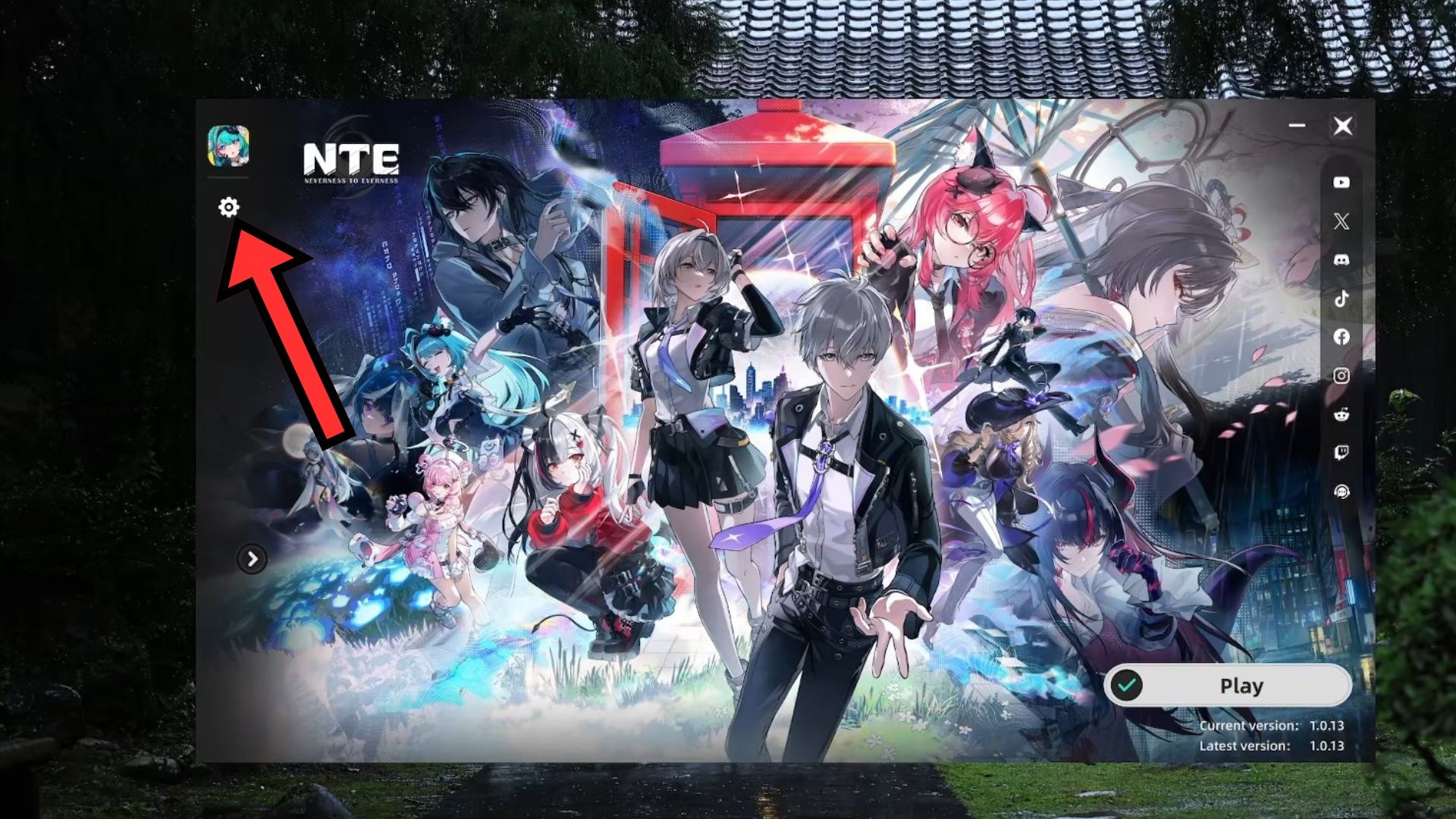
- Launch the NTE: Neverness to Everness game client on your PC.
- Click on the Settings icon below the game icon in the top left corner of the launcher.
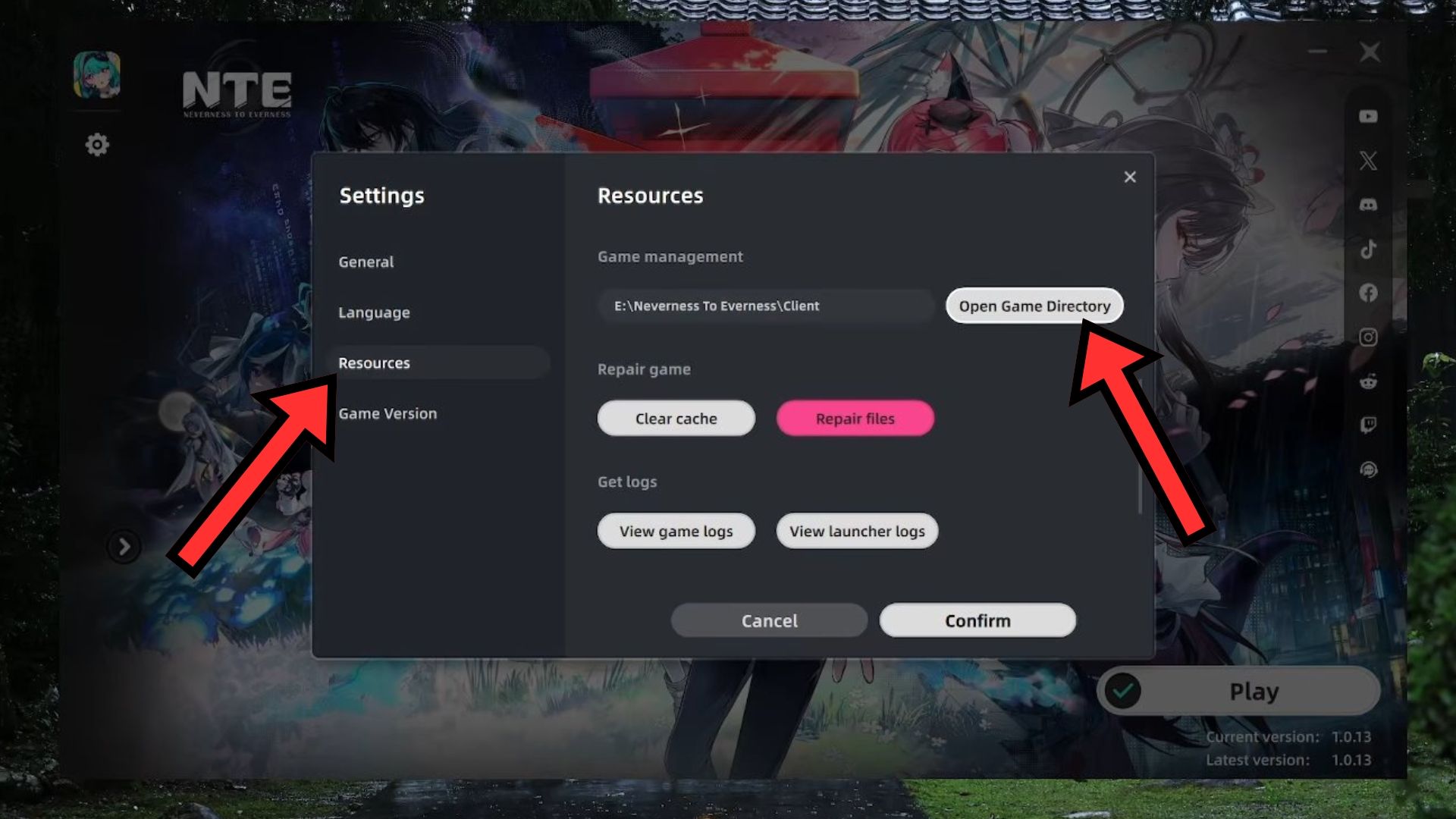
- Click on “Open Game Directory” to open the installation folder, which should be something like “C:\Neverness To Everness\Client.”
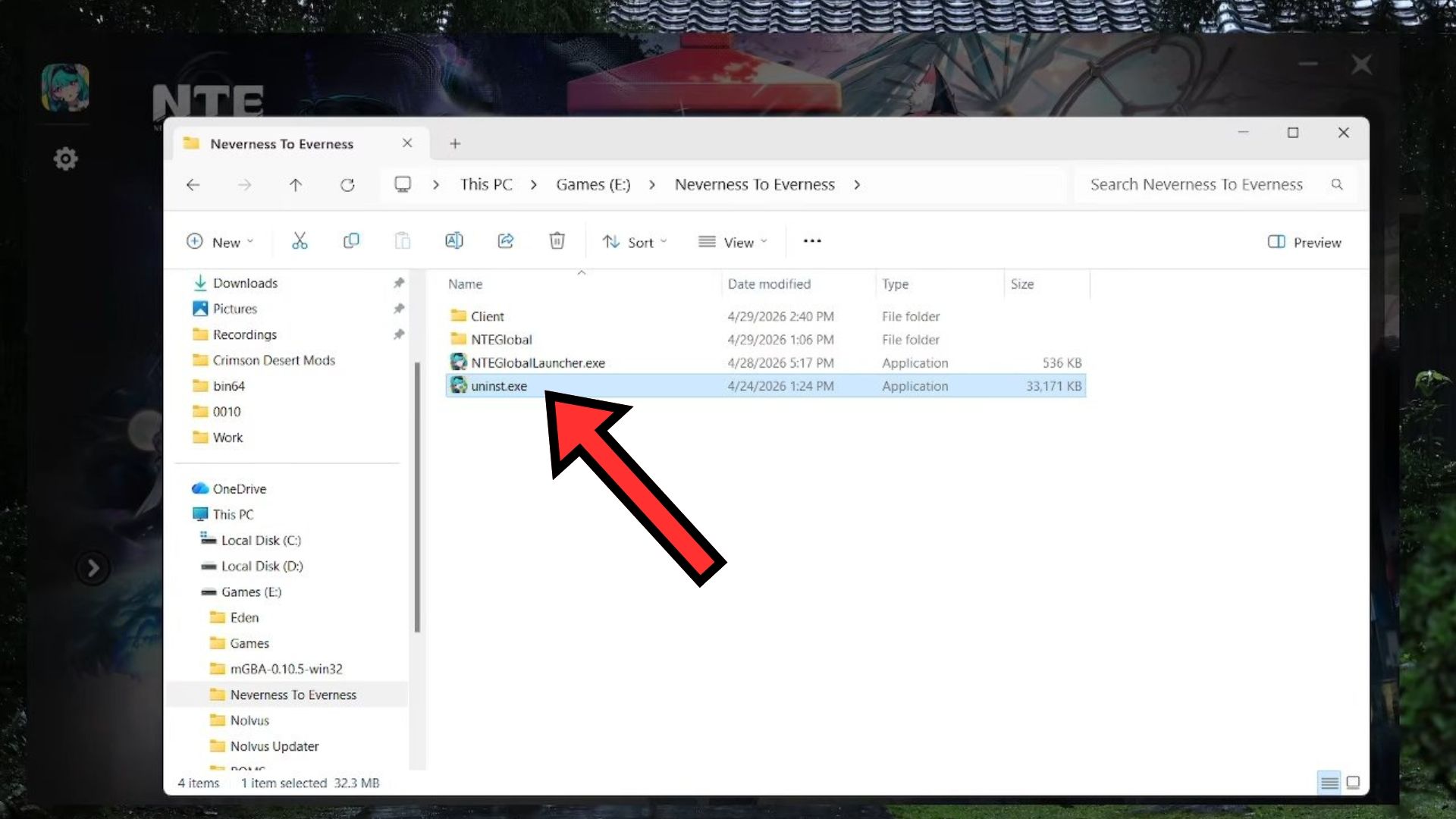
- Double-click “uninst.exe” underneath the Launcher executable in this folder to start the uninstallation process.
- Click on “Uninstall” in the launcher window to finalize the deletion process.
Select the “Resources” tab from the column on the left.
Close the game launcher.
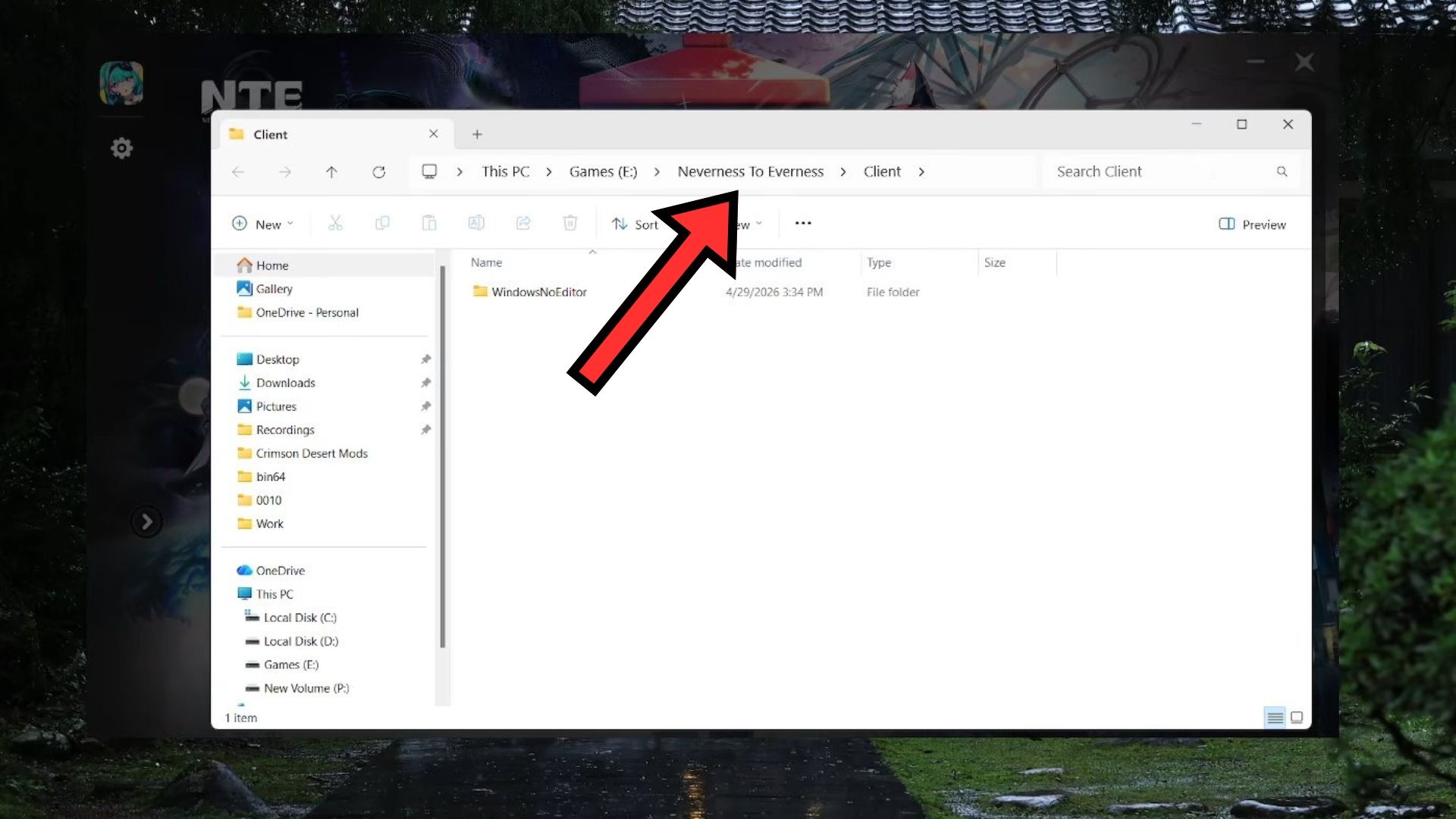
Click on the “Neverness to Everness” folder in the Address Bar in the File Explorer to go to the main installation folder.
Click “Yes” when prompted by Windows to confirm your selection.
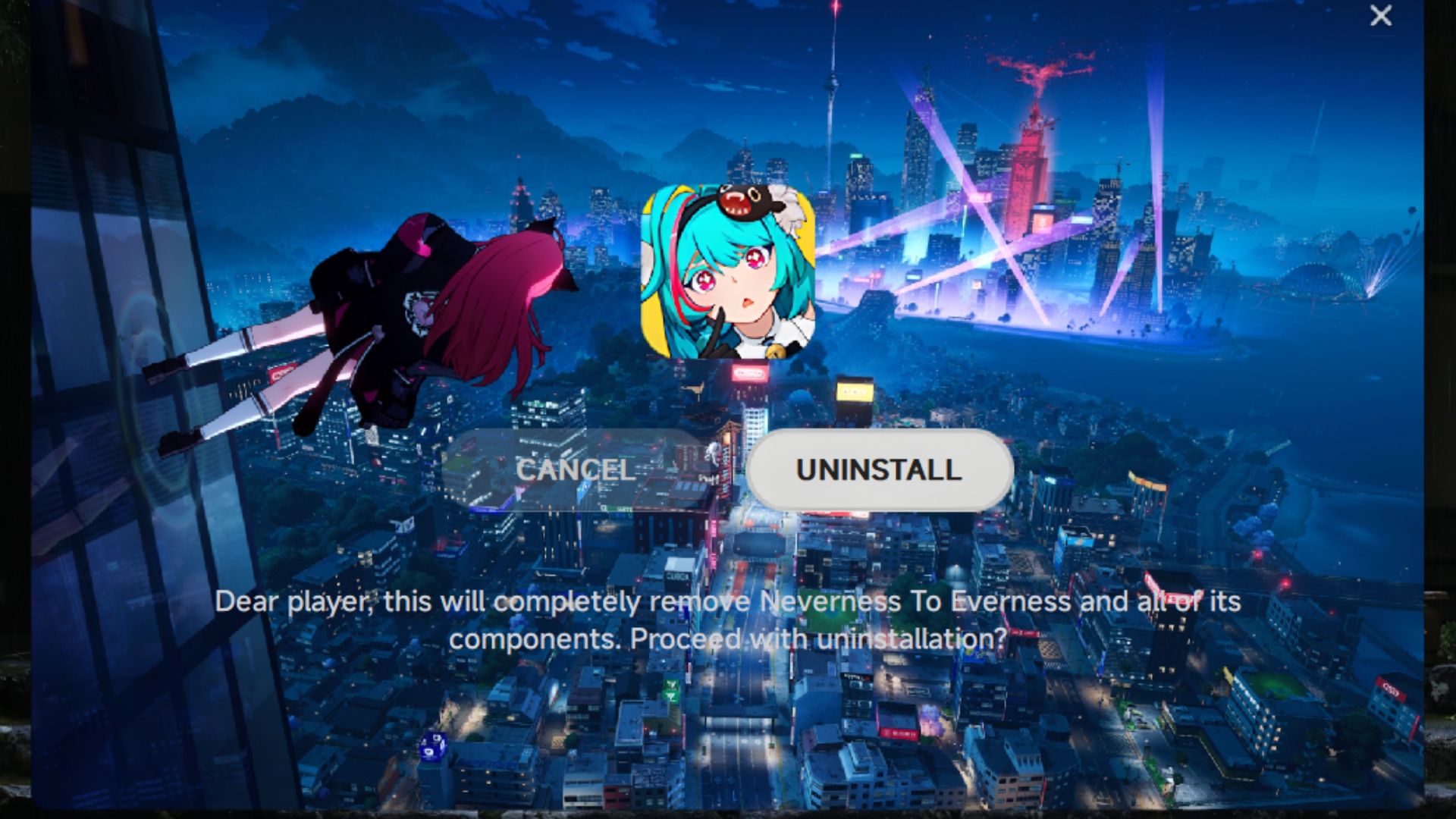
After a brief progress window, NTE will be removed from your PC completely.
Your progress in Neverness to Everness isn’t saved on your device, but is linked to your account online. This means if you reinstall the game (NTE), you can continue right where you stopped and access all your unlocked characters, as long as you remember your username and password and have access to the email account associated with your account.
Method #2
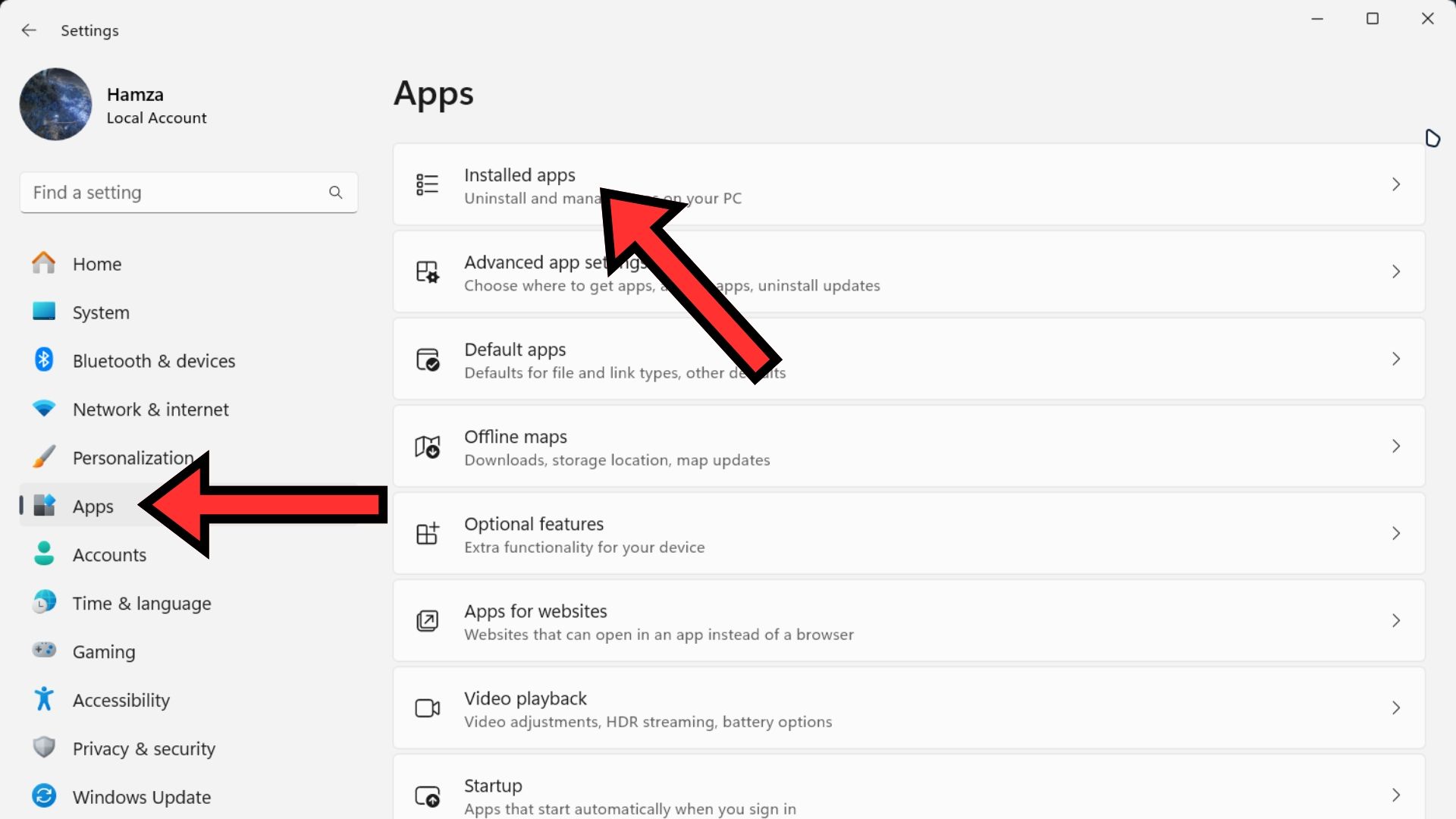
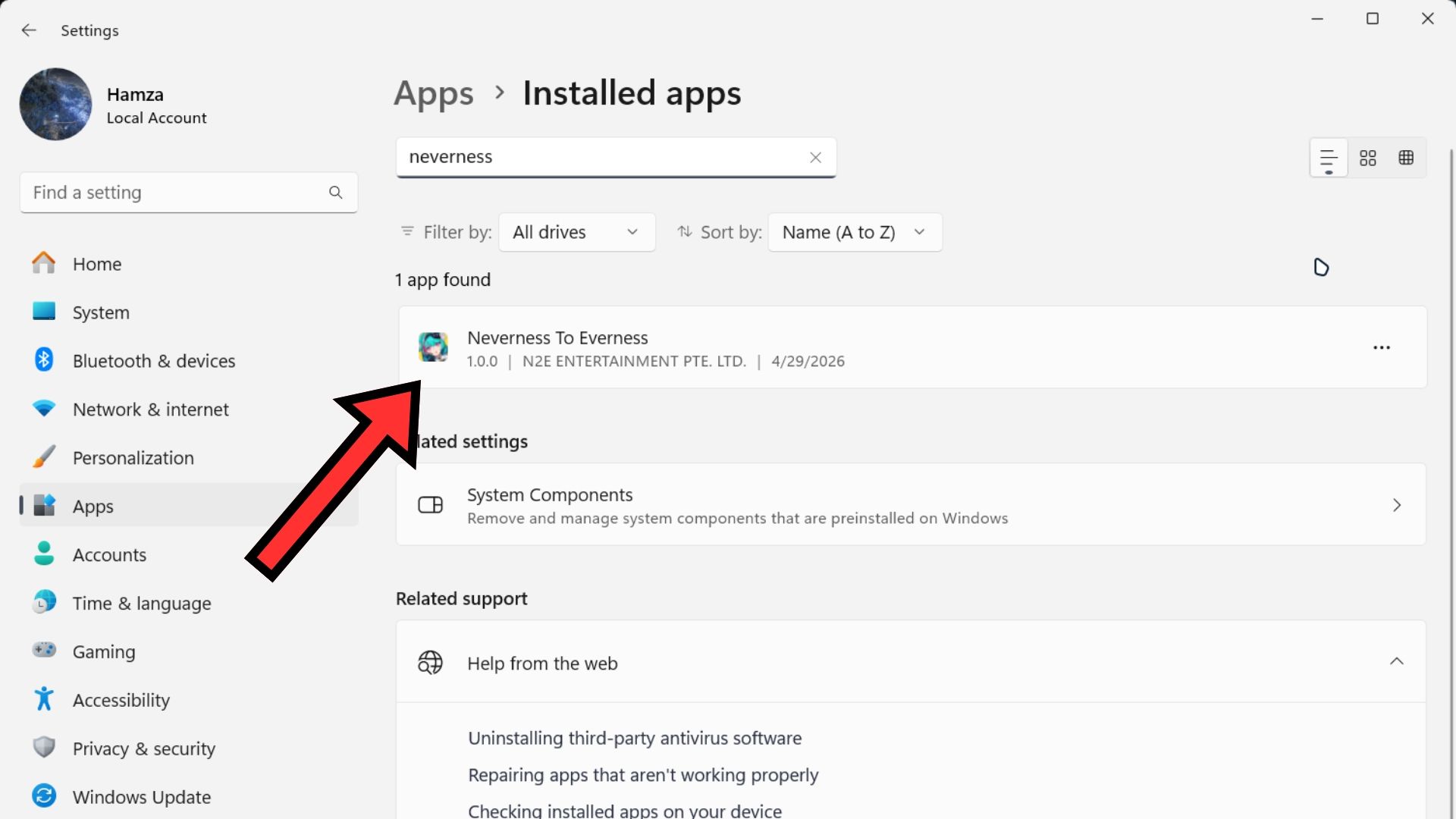
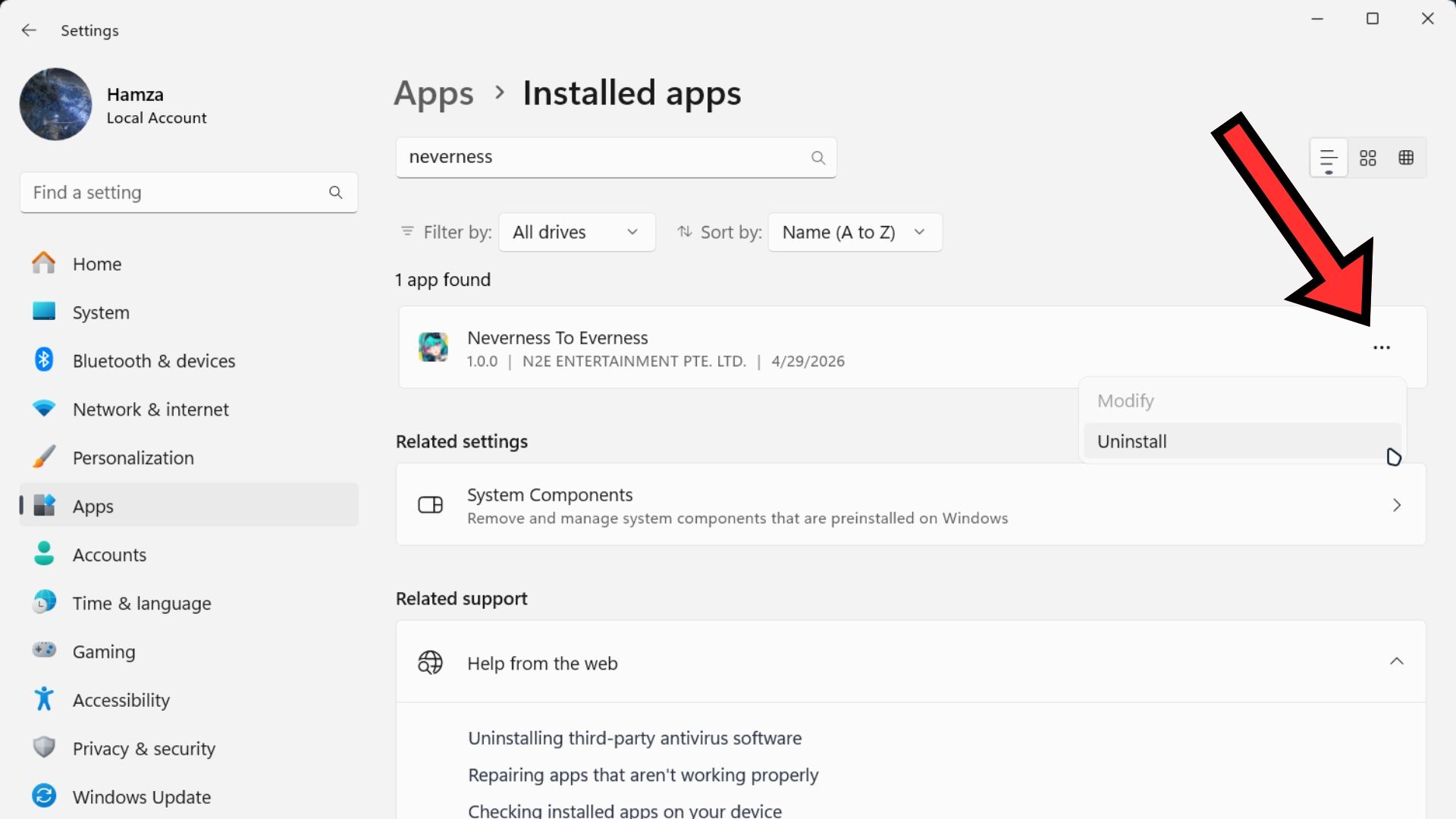
Alternatively, you can use Windows built-in app uninstaller to delete NTE from your PC.
- Right-click on the Start icon and open “Settings” from the context menu (or press Windows + I).
- Go to Apps → Installed Apps.
- Search for “Neverness to Everness” in the top bar.
- Click on the three dots in the right corner of the Neverness to Everness entry and select “Uninstall.”
- Click “Yes” when prompted by Windows to confirm your selection.
- Click on “Uninstall” in the launcher window to finalize the deletion process.
Read More
- Forza Horizon 6: Find the Ohtani Treasure Chest Location
- LEGO Batman Legacy of the Dark Knight Batcave Minikits & WayneTech Caches
- NTE Drift Guide (& Best Car Mods for Drifting)
- Skyblivion Gets Encouraging Development Update
- How to Open Locked Door in Tenryu River in Nioh 3 (Dirty Key)
- Sega’s “Super Game” is Said to Release Next Month, But Nothing is Known About It
- Dead as Disco Best Songs (Clear Beats & Stable BPMs)
- Asmongold reveals shocking detail about how much money he makes
- GameRant Daily Crossword (February 10, 2026)
- New Steam Game is Like Pokemon If It Were a Sci-fi Shooter
2026-05-08 19:09