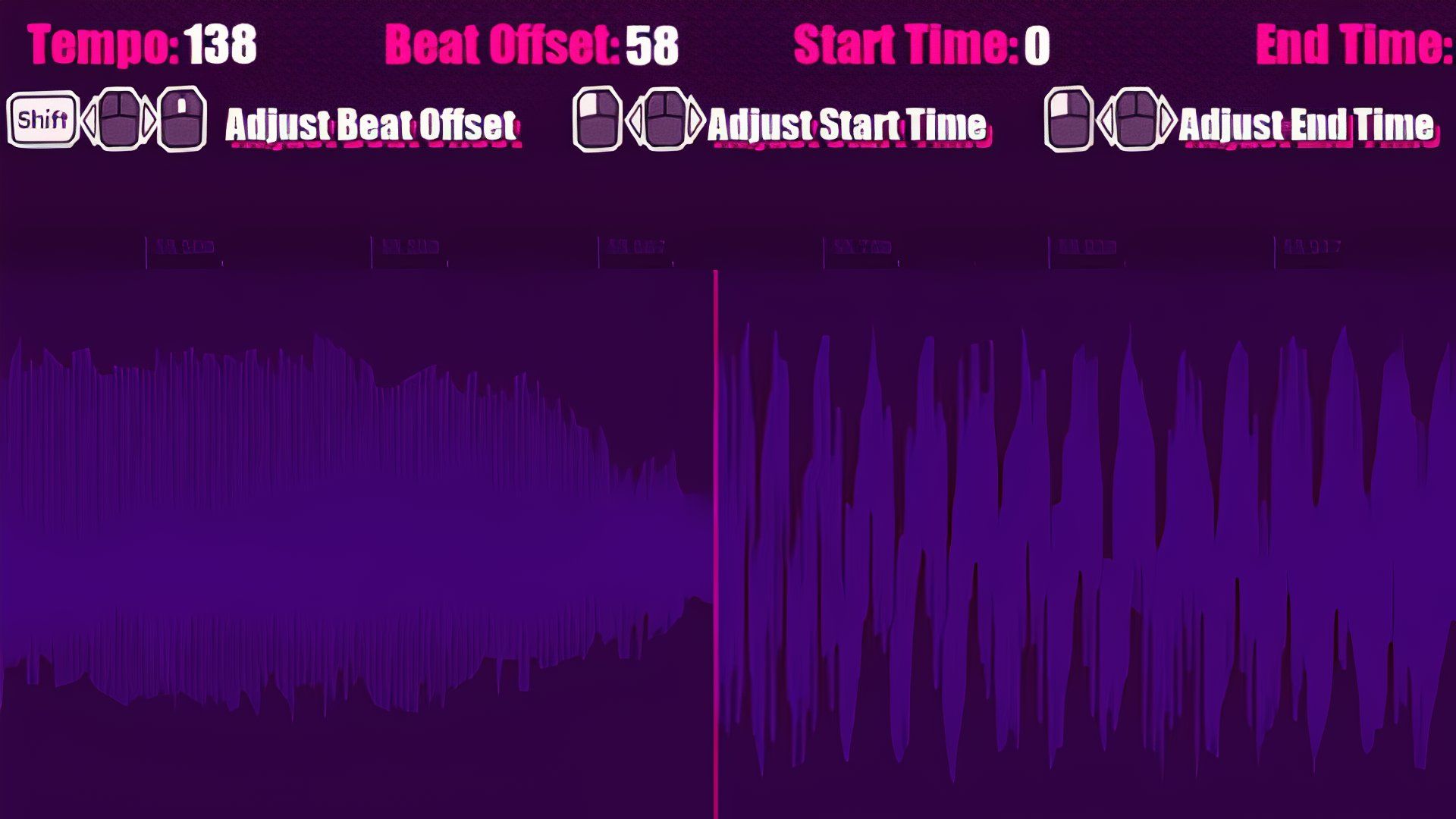
Adding your own music is a really fun part of playing Dead as Disco. But, you’ll usually need to tweak a few settings in the game’s editor to get songs to line up correctly. While setting the correct BPM (beats per minute) is important, adjusting the ‘Beat Offset’ is often what actually solves the synchronization issue in Dead as Disco.
How to Fix Song Sync in Dead as Disco (TL;DR)
- Use a BPM database to confirm the exact BPM of your song.
- Find a strong beat in your song and zoom in on it to clearly see its waveform.
- Adjust Beat Offset until the beat map (pink line) lands directly on the peak of that waveform.
Why Songs Feel Out of Sync in Dead as Disco
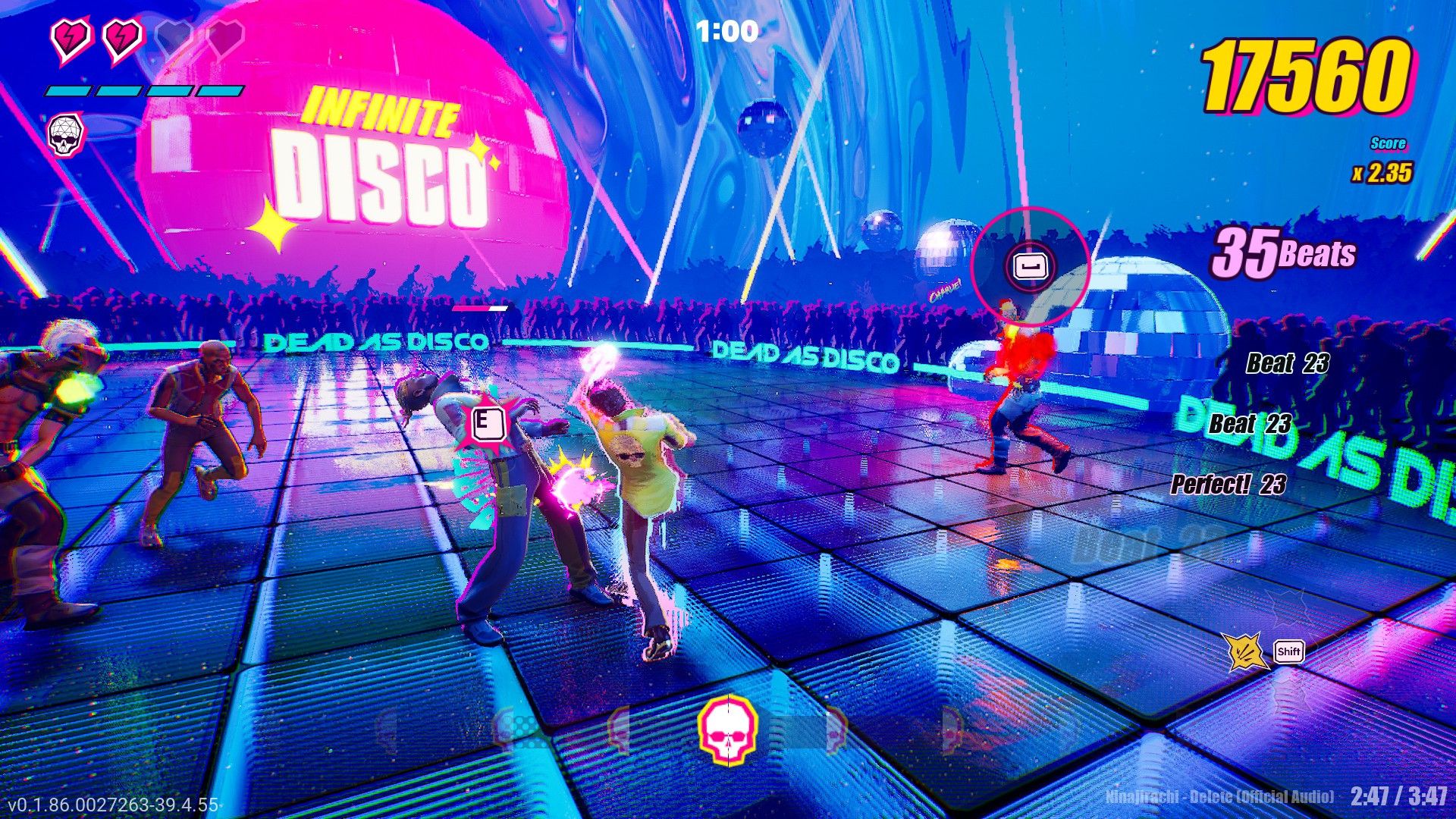
If a song you’ve imported doesn’t seem to line up with the beat, it’s usually because of one of two things: the BPM (beats per minute – which controls the song’s speed) is wrong, or the Beat Offset (which determines exactly when the beats start) isn’t set correctly.
If your song slowly falls out of sync while playing, the problem is probably an incorrect BPM setting, or a BPM that changes throughout the song. If the song is off-beat right from the start, you likely need to adjust the Beat Offset.
Some Lag Is Actually Rhythm Desync
If imported songs don’t line up with the game, it can feel like there’s a delay, even if the game itself is responding quickly. This usually happens because the song’s tempo (BPM) or timing (beat offset) is off, causing actions to happen a little too early or late with the music.
BPM, Beat Offset, and Start Time All Do Different Things
Our advanced editor lets you adjust the BPM (beats per minute), beat offset, and start time of any song you import. Understanding these settings is key to avoiding syncing problems, so here’s a breakdown of how they work.
BPM Controls the Overall Tempo
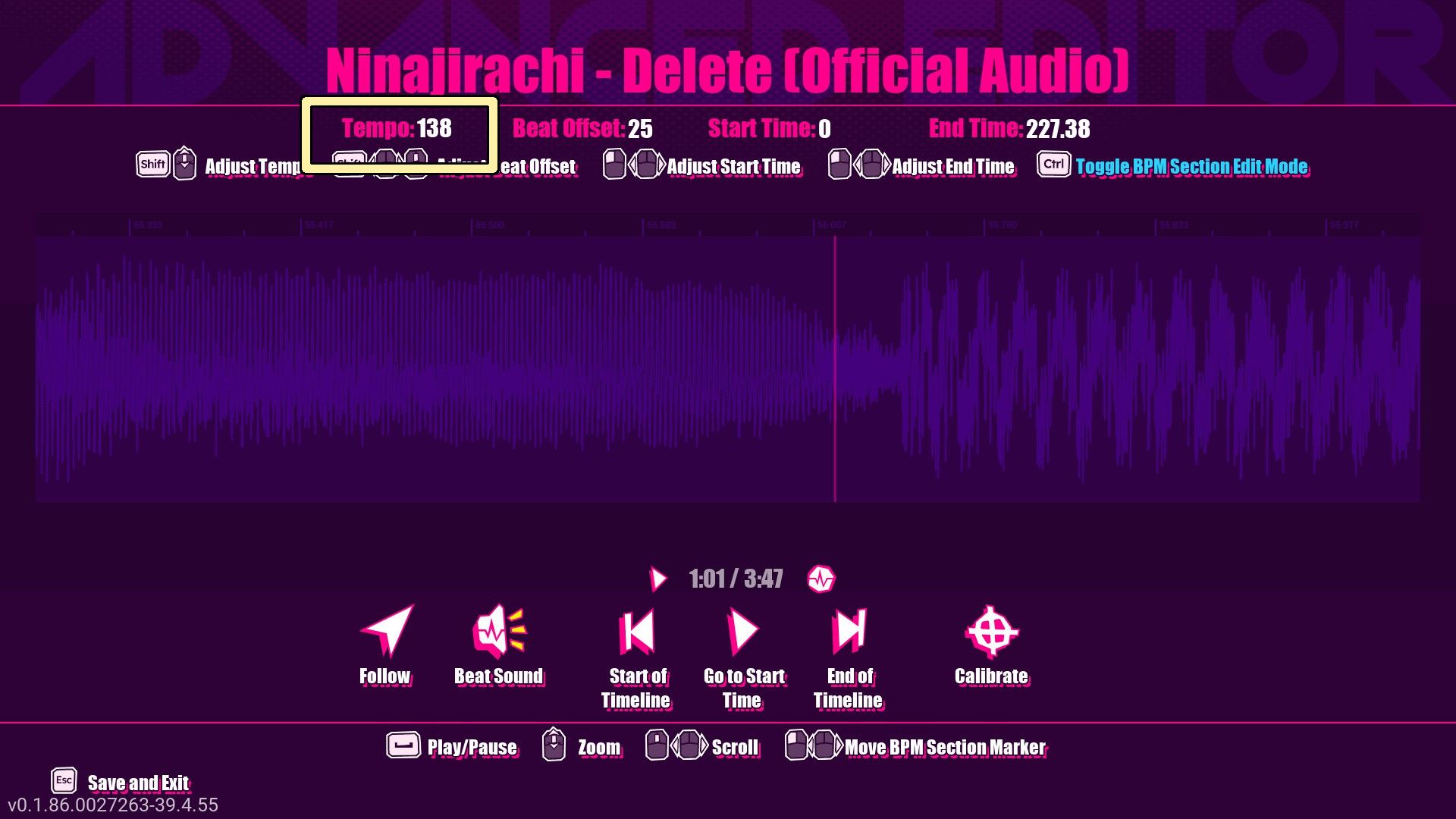
BPM, or beats per minute, measures how fast or slow a song is. Faster songs have higher BPMs, while slower songs have lower ones. If the BPM setting on your equipment doesn’t match the song’s actual BPM, the music might initially stay in time, but will quickly drift out of sync as you play.
Beat Offset Aligns the Song to the Beat Grid
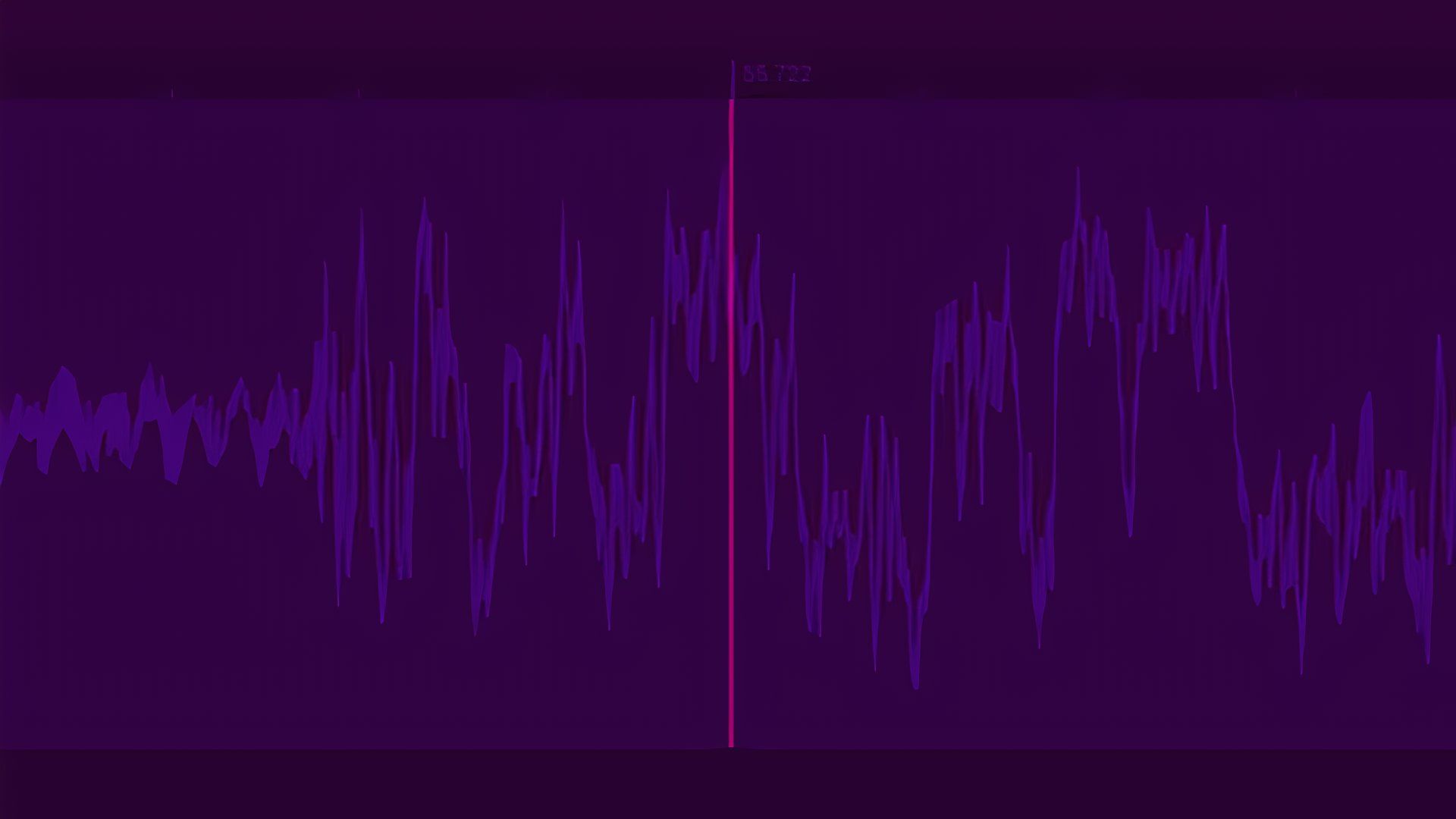
Beat Offset lets you fine-tune the timing of beats in the game. Even with the correct BPM (beats per minute) set, you might need to adjust the offset by a few milliseconds to perfectly match the game’s beat map – those pink lines – with the rhythm of the song. If the beat feels off right away, even after setting the BPM correctly, the Beat Offset is probably the issue.
Start Time Only Changes Where the Song Begins
The ‘Start Time’ setting only changes where a song begins playing and won’t fix any timing problems. If you want a song to start later than the beginning, use this setting, but it won’t help if the song is out of sync.
How to Tell Which Setting Is Actually Wrong
- If the song starts in sync but slowly drifts, BPM is the likely issue.
- If the timing feels wrong immediately, Beat Offset is probably the cause.
- If you only want to skip intros, use Start Time instead of changing BPM or Beat Offset.
Start by Finding the Correct BPM
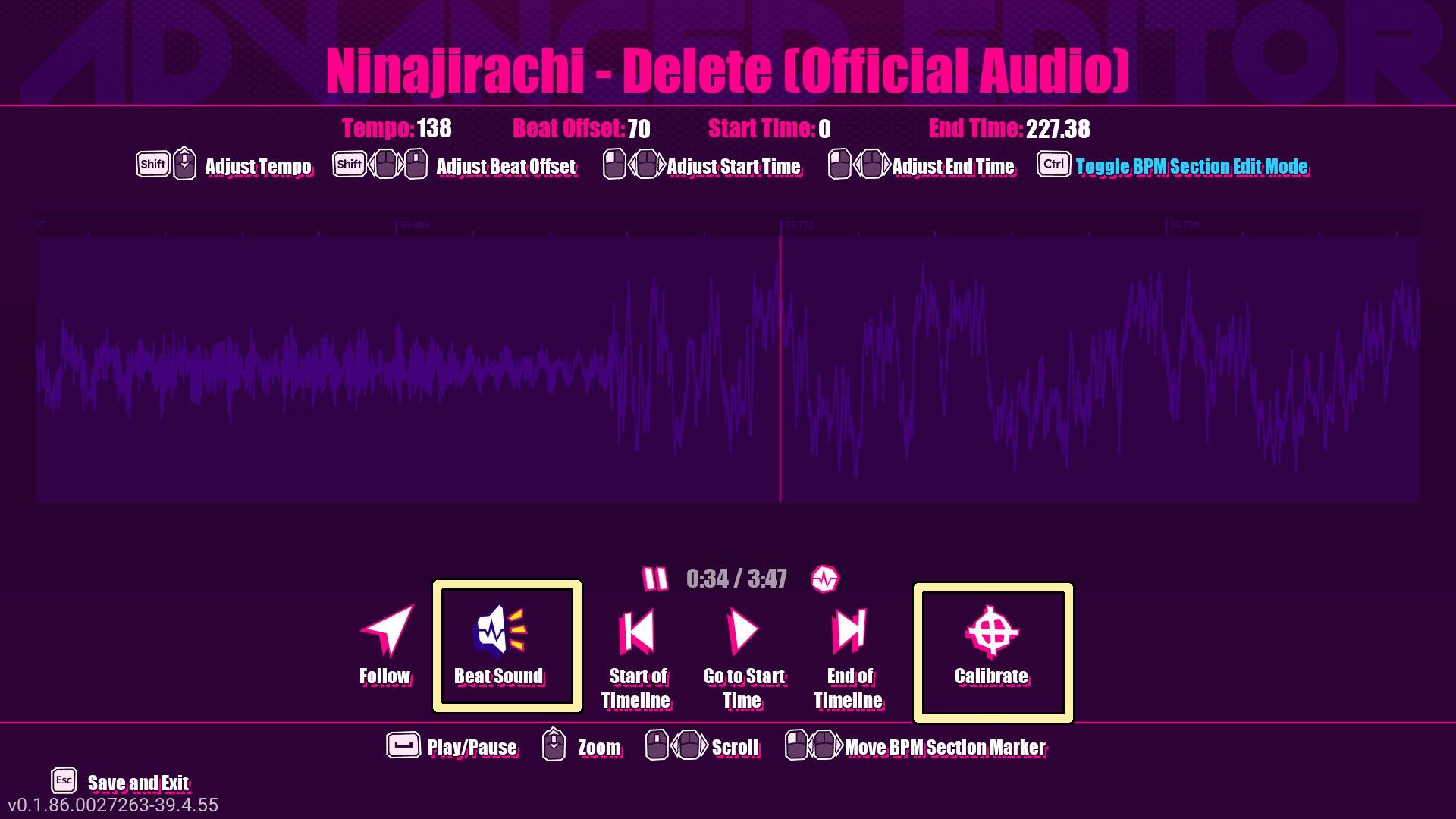
Once you’ve added a song, select it in the Free Play playlist. Then, tap the ‘Edit’ button at the bottom of the screen to open the advanced editor. Click ‘Beat Sound’ below the timeline. This activates a click track, which helps you easily see where the beats in the song line up with the grid, making it simpler to verify the BPM and beat offset.
Use a BPM Database or In-Game Calibration
Next, adjust the number beside “Tempo” to match the song’s BPM. If you don’t know the BPM, resources like Tunebat can help you find it.
If your song isn’t recognized in the database, use the ‘Calibrate’ feature under the timeline. Click along with the music’s beat to estimate the BPM (beats per minute). Then, fine-tune that tempo in the advanced editor, rounding it to the nearest whole number for a precise beat.
Dead as Disco automatically sets the tempo of imported songs to 120 beats per minute. Because of this, tracks often play at the wrong speed until you adjust them.
Some Songs Have BPM Changes
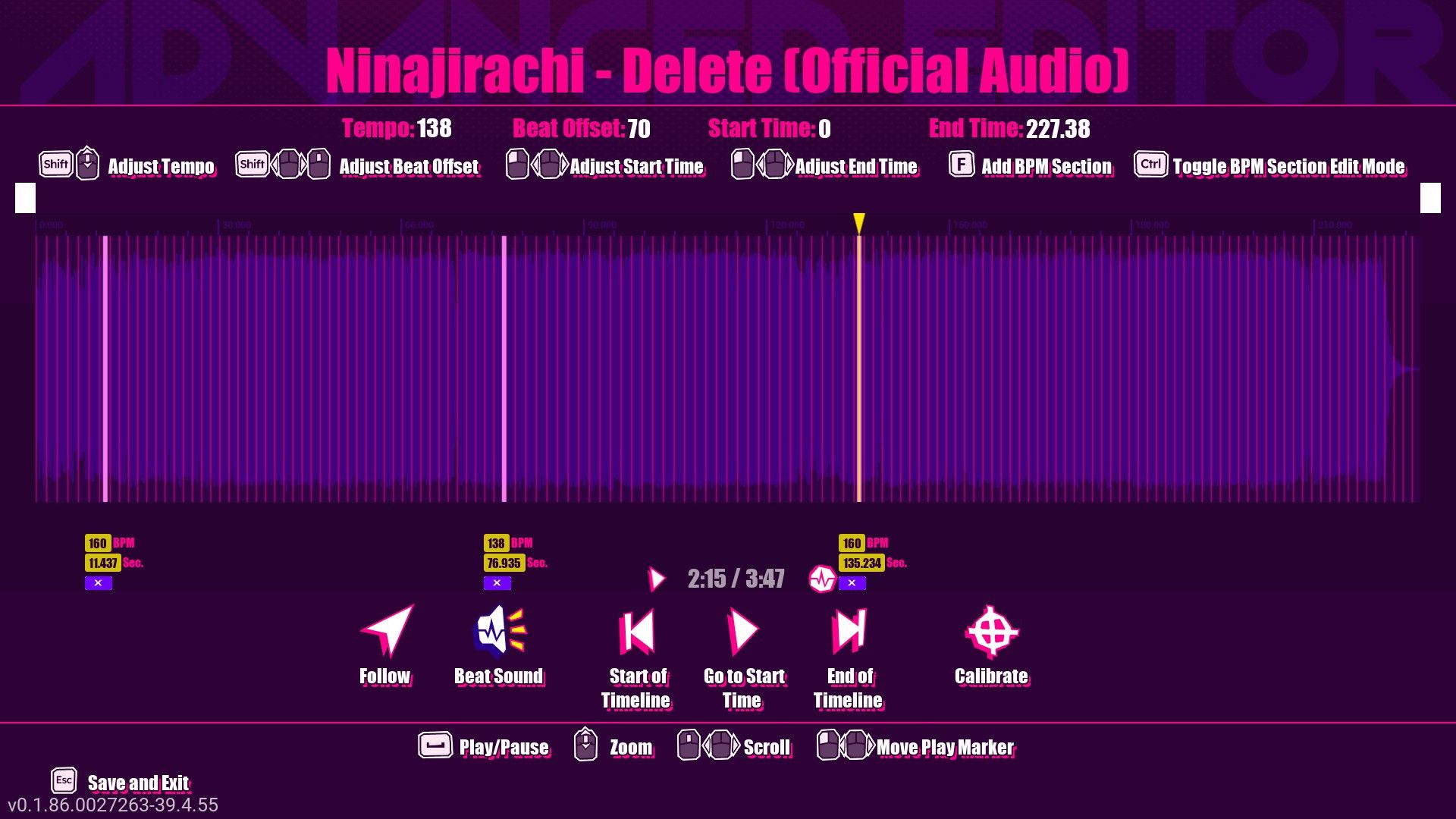
Sometimes songs speed up or slow down, which can be tricky. You can easily handle these changes using the “Add BPM Section” feature located above the timeline.
If you can’t find the ‘Add BPM Section’ option, click the ‘Toggle BPM Section Edit Mode’ button above the timeline.
Locate any points in the song where the beats per minute (BPM) change. Add a BPM section marker at each change, and adjust the BPM value below the timeline to match the new speed. If the song returns to its original tempo, be sure to add another BPM section marker to indicate that change as well.
Beat Offset Is Usually the Most Important Fix
Once you’re sure the beats per minute are correct, you can fine-tune the beat alignment so the lines match up perfectly with the music.
Find a Strong Beat
Begin by locating a section in your song with a prominent, powerful beat. A beat drop following a calmer part works especially well, because it clearly shows when the beat lands on the game’s visual waveform.
If you’re having trouble moving the yellow marker to find a good beat on the timeline, click the “Toggle BPM Section Edit Mode” button above the timeline.
Zoom In Before Adjusting Anything
Now, focus closely on the beat you’ve found and examine the detailed waveform. Position the pink line as precisely as possible on the highest point of that waveform. Remember, each pink line marks a single beat within the beat map.
Change Beat Offset
To adjust the beat markers, begin by making a large change to the ‘Beat Offset’ – try a value of 100 to shift the pink lines to the right. If the closest pink line ends up after the beat, reduce the offset slightly. If it’s still to the left of the beat, increase the offset.
When the pink line gets close to hitting the beat perfectly, start making small tweaks to the Beat Offset. These adjustments will shift the line a little to the left or right. You’ll likely only need to adjust it by one or two units to align the line with the top of the waveform. Use the Beat Sound click track as a guide to confirm you’ve got it just right.
Some Songs Are Harder to Sync Than Others
You can usually adapt most songs to be playable with enough effort, but some present more challenges than others.
- Songs with complex or quiet drum patterns can make the beat harder to identify, even when BPM and Beat Offset are technically correct.
- Songs with variable BPMs require a lot of additional work, as you’ll need to add BPM Sections to keep things in sync.
Read More
- Change Your Perspective Anomaly Commission Guide In NTE (Neverness to Everness)
- All Nameless Hospital Endings Full Guide In NTE
- Lonely Player Anomaly Commission Guide In NTE (Wandering Puppet Locations)
- Robinhood’s $75M OpenAI Bet: Retail Access or Legal Minefield?
- Beware! Phishing Emails Are Deceiving Robinhood Users in a Sneaky Plot!
- All Skyblazer Armor Locations in Crimson Desert
- Midas Tower ReroRero Phone Booth Location in NTE
- NTE Banners (Current, Next, And Upcoming Banners)
- How to Complete Funny Blocks Game in Infinity Nikki
- All the Free Games You Can Claim in May 2026
2026-05-06 16:41