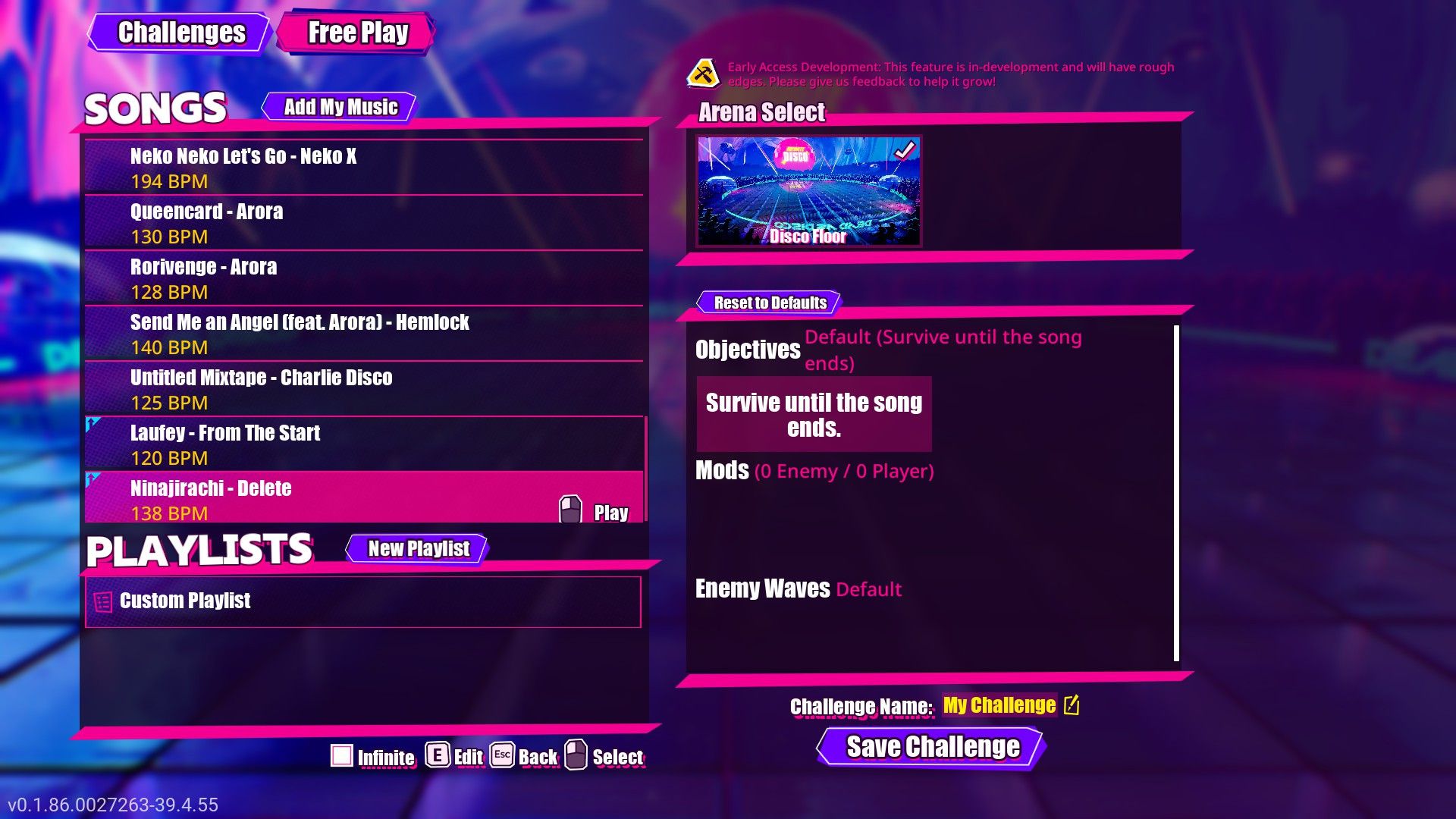
Adding your own music is a fantastic way to improve your Dead as Disco experience. But getting songs imported can be tricky, particularly if you’re playing Dead as Disco on the Steam Deck.
How to Import Custom Songs (TL;DR)
- Complete the tutorial to unlock Infinite Disco.
- Pick Infinite Disco at the bottom of the Level Select screen.
- Click on the Free Play tab at the top.
- Click Add My Music above the song list.
- Find and select a local audio file.
- Save the song to add it to the bottom of the Free Play song list.
How Custom Music Works in Dead as Disco
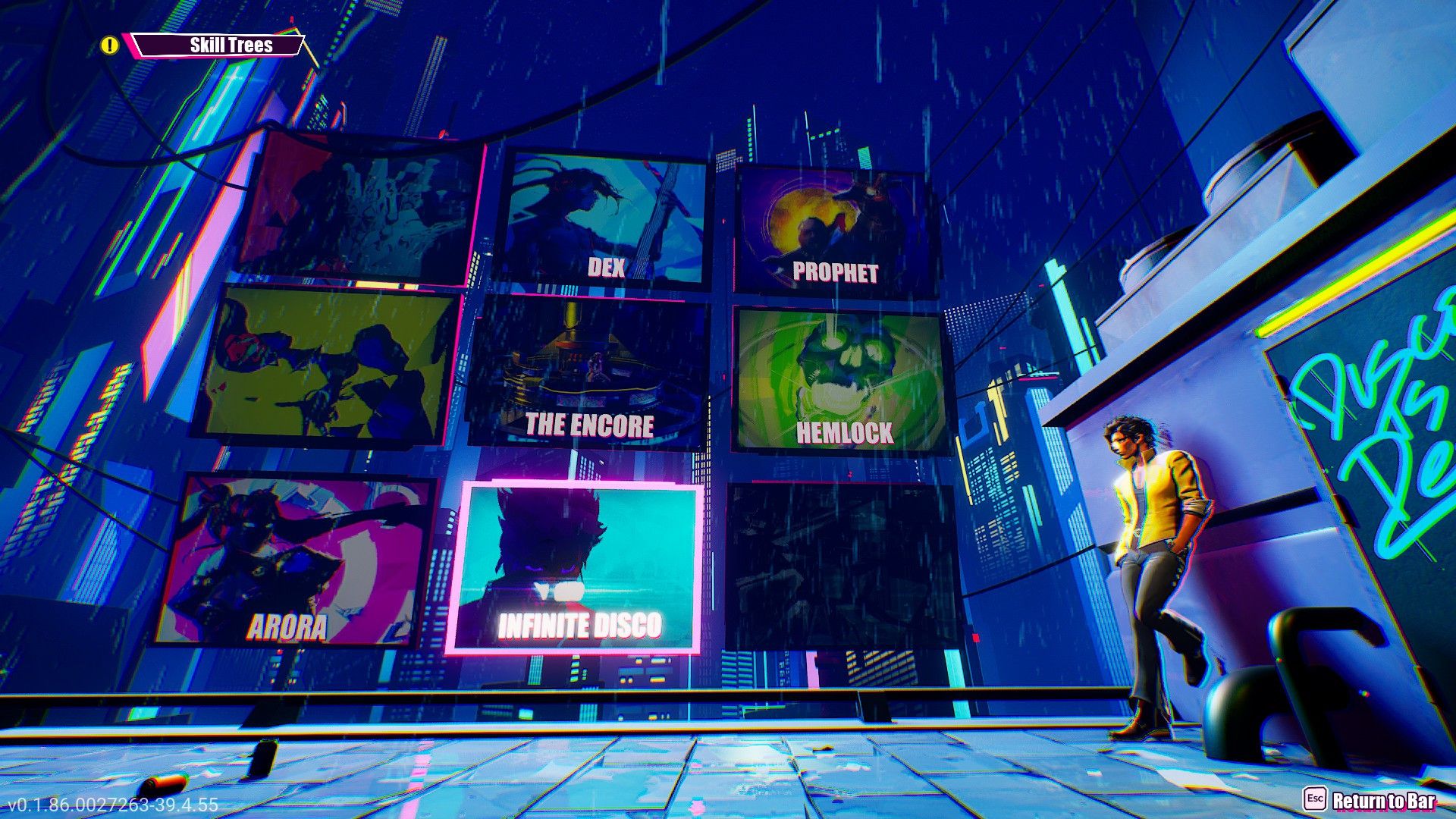
You Need to Complete the Tutorial
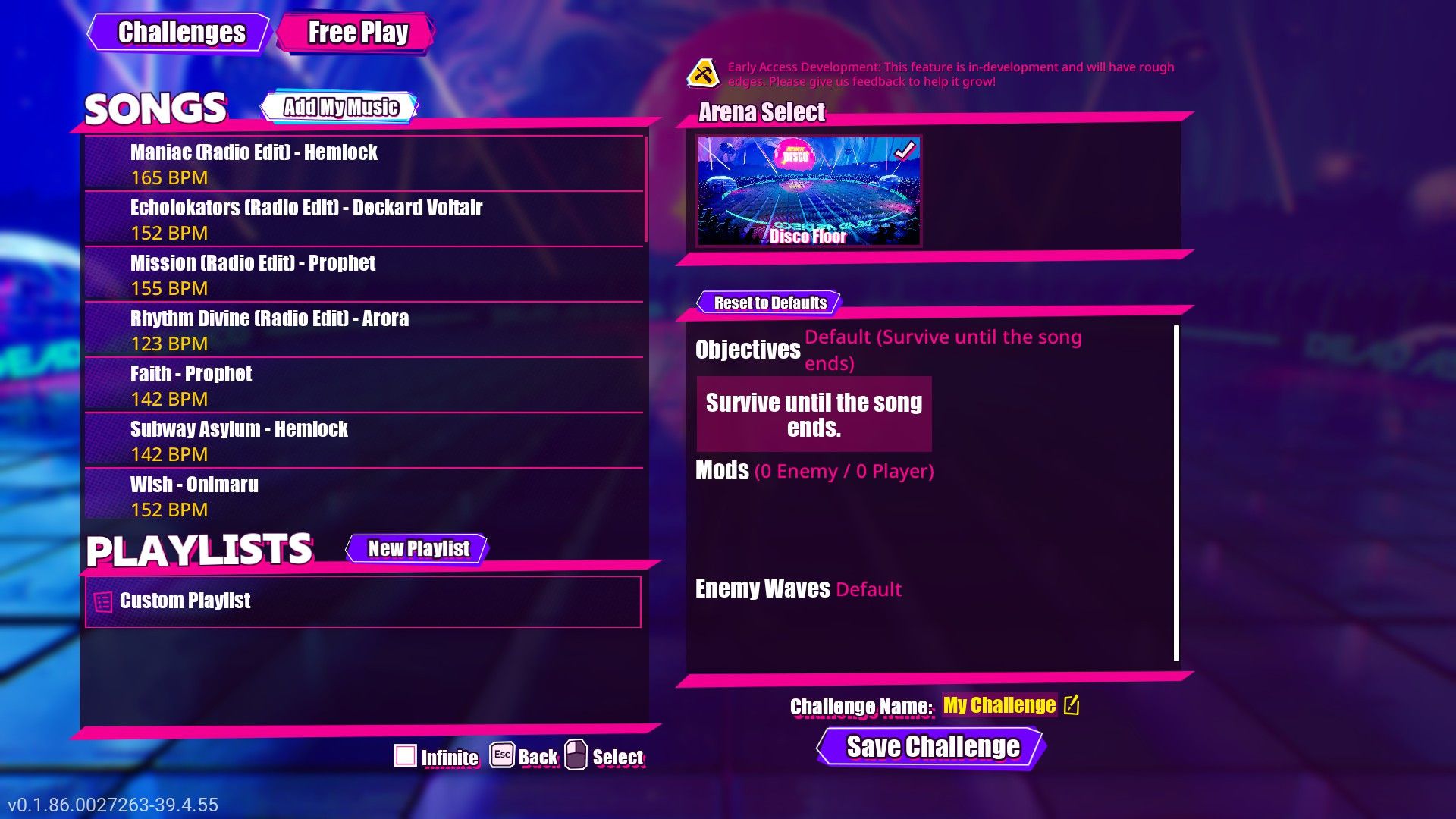
Once you finish the tutorial and unlock Infinite Disco, you’ll be able to upload your songs right away. It only takes about five minutes, and you’ll find an “Add My Music” button at the top of the song list when you’re in Infinite Disco’s Free Play mode.
You Can Import Many Audio File Formats
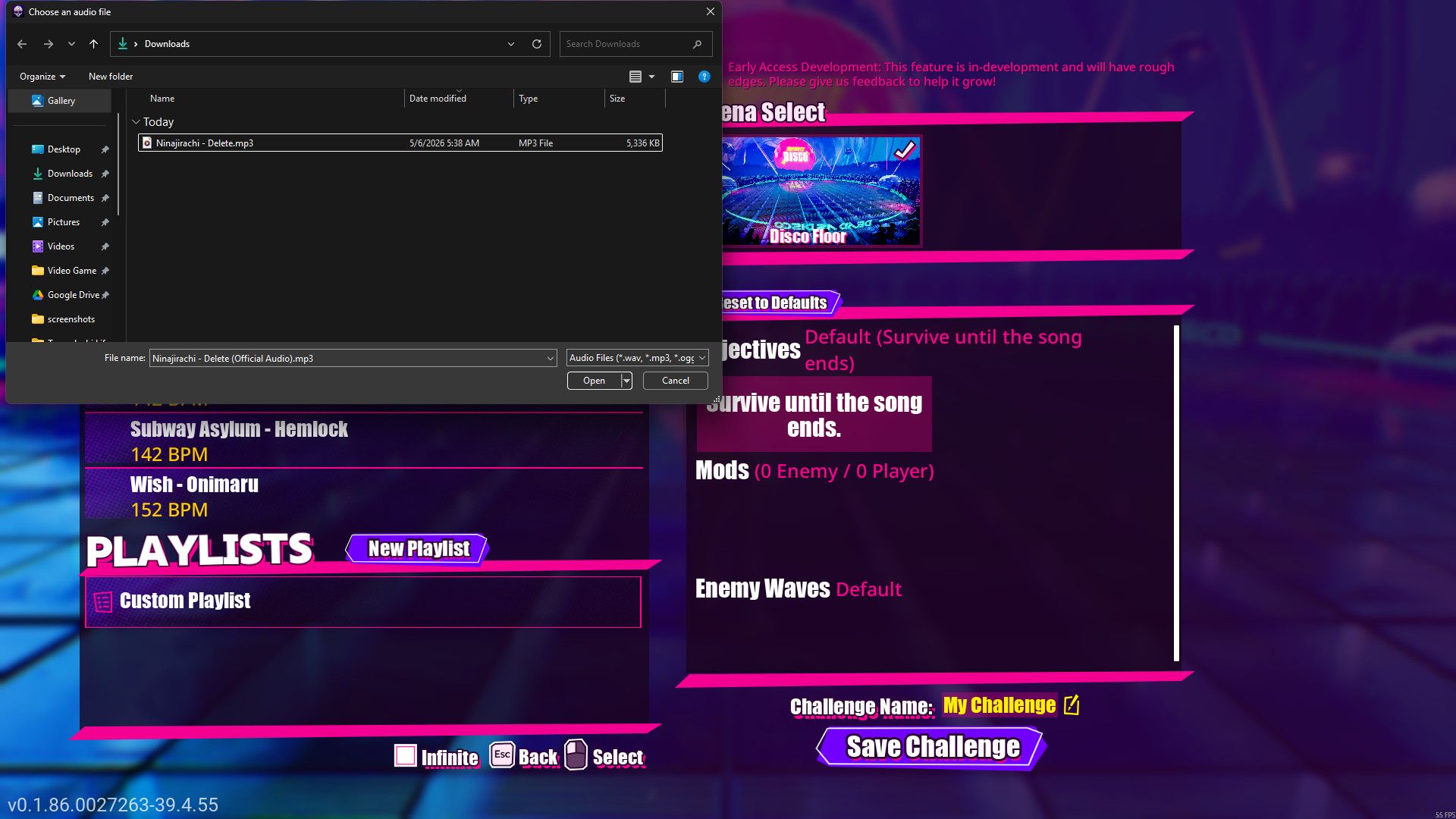
The game supports many audio file types, including wav, mp3, ogg, flac, aiff, m4a, wma, and aac. While most formats work, very large files might not play correctly, so using mp3s is recommended.
Playing an Imported Song
After you’ve imported and saved a song, you can play it in Free Play within Infinite Disco. Just remember that any custom songs you add will appear at the end of the song list, sorted alphabetically.
How to Add Custom Songs on PC
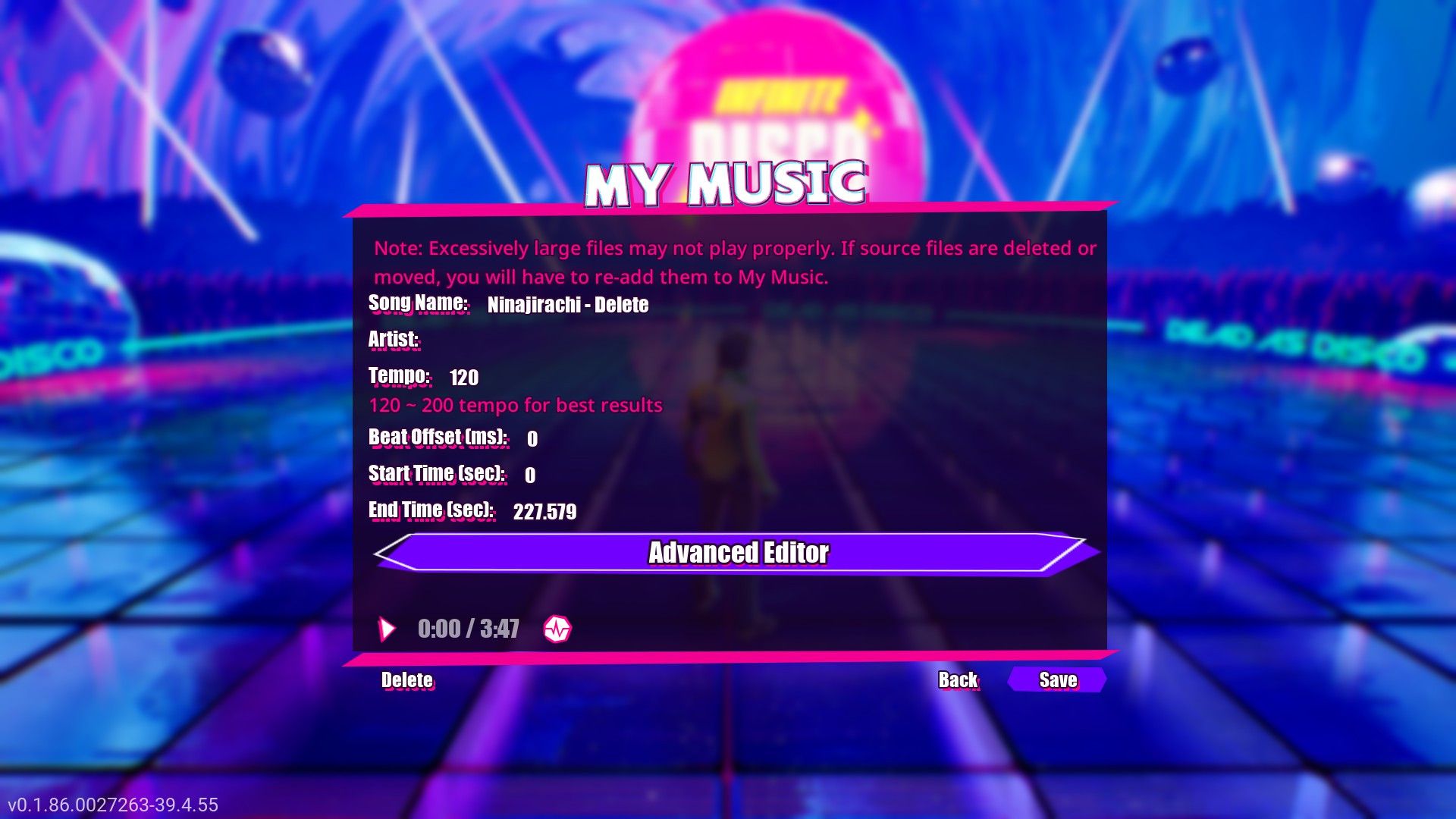
To use your own music in Infinite Disco, first unlock the level. Then, from the Level Select screen, go to the Free Play tab and click “Add My Music” at the top of the song list. This will open a window where you can choose an audio file from your computer. Once you’ve selected your song, check the details shown in the game and then save it – it will be added to the bottom of the Free Play list.
How to Add Custom Songs on Steam Deck
Adding music to your Steam Deck is much like adding it to a PC – you’ll use the Infinite Disco’s Free Play feature. The main challenge is getting the music files organized correctly on your device.
If you’re having trouble, try this:
Transfer the Song to Steam Deck
Getting music onto your Steam Deck can be done in a few ways, but emailing it to yourself is a reliable option. Simply send the song file to your own email address. Then, switch to Desktop Mode on your Steam Deck (by holding the power button and choosing ‘Switch to Desktop’), open a web browser, go to your email, and download the song.
Copy the Song to the Correct Folder
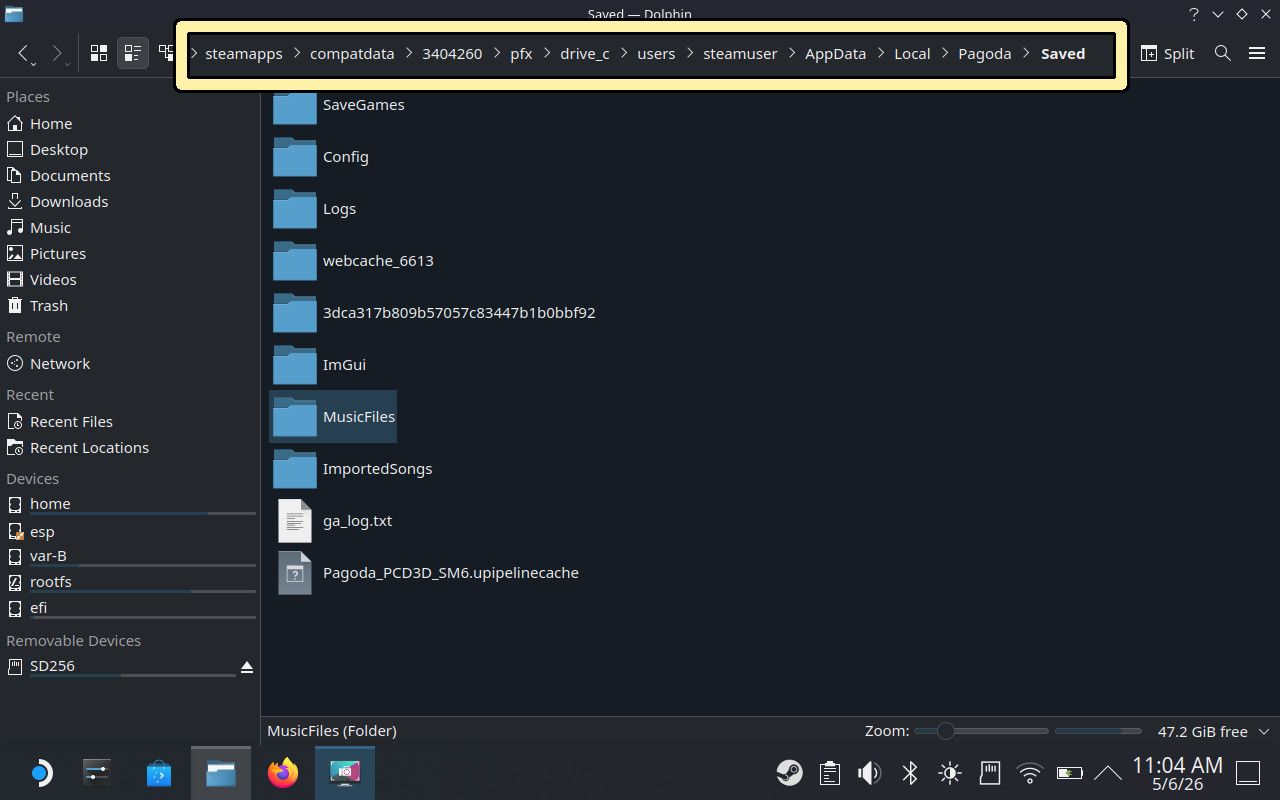
Open Dolphin, then go to your Downloads folder. Right-click the song and copy it. Next, paste it into the following folder:
This is a file path on a computer, likely indicating where music files are stored within a Steam game’s compatibility layer. It points to a specific folder for music saved by an application called Pagoda.
You can find the file by browsing your folders or typing its location into the search bar at the top. If you don’t see all the folders, click the three-line icon next to the search bar to display hidden ones.
Import the Song
With the song in its proper folder, start Dead as Disco and follow these steps:
- Go to the Level Select screen and pick Infinite Disco at the bottom.
- Click the Free Play tab at the top of the screen.
- Click the “Add My Music” button above the song list.
- Select the song from the menu that appears.
- Click save under the song details to add the track to the bottom of the song list.
Some Songs Need Additional Editing
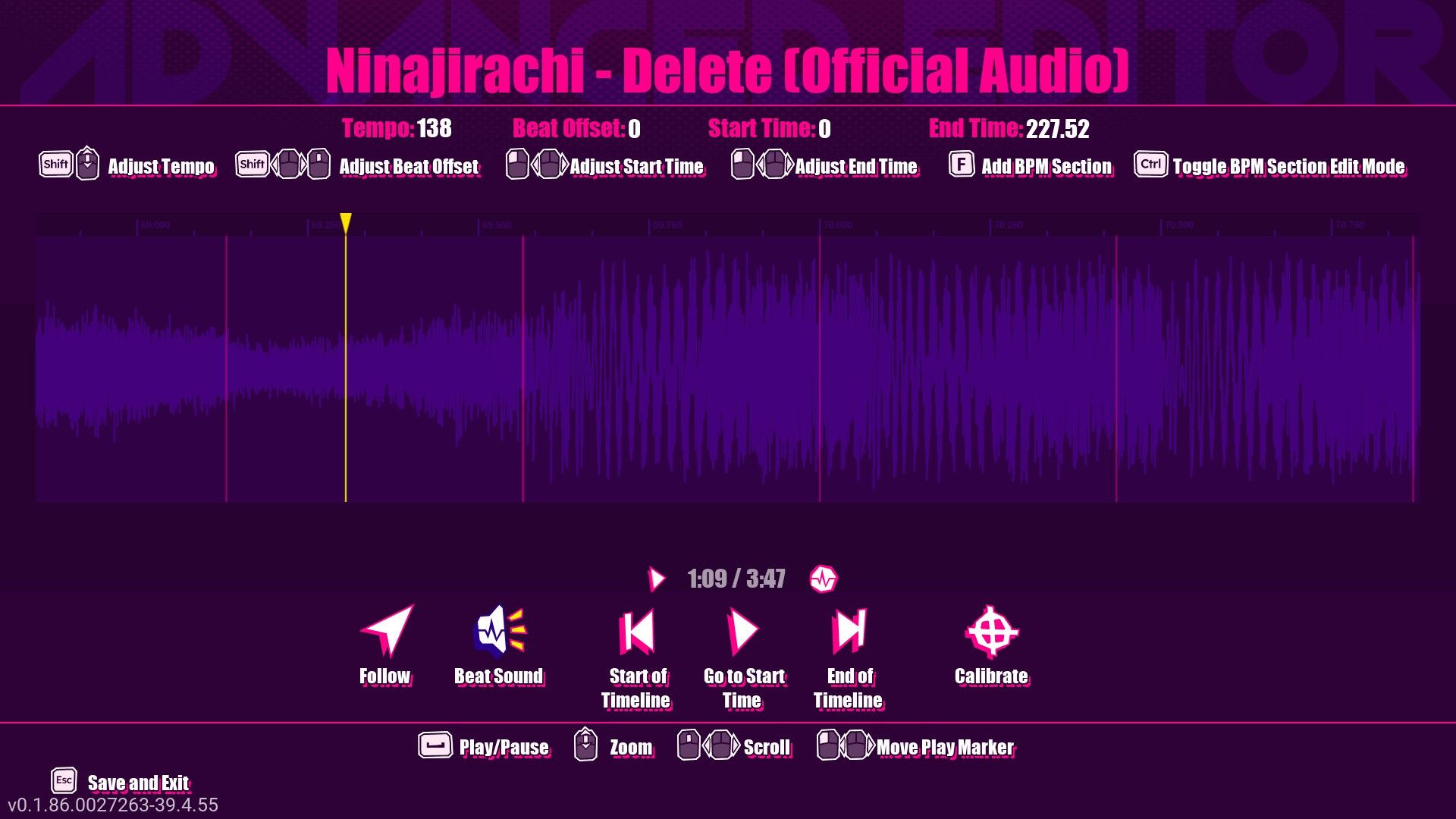
When you first add songs, they might not be perfectly timed. You can easily fix this by adjusting the BPM (beats per minute) and beat offset, and we have a guide to walk you through the process.
Can You Use Spotify Songs in Dead as Disco?
No, Spotify streaming tracks cannot be imported directly into Dead as Disco.
Read More
- Forza Horizon 6: Find the Ohtani Treasure Chest Location
- LEGO Batman Legacy of the Dark Knight Batcave Minikits & WayneTech Caches
- NTE Drift Guide (& Best Car Mods for Drifting)
- Diablo 4 Best Loot Filter Codes
- USD RUB PREDICTION
- Boruto: Ikemoto Has Already Hinted At Sasuke’s New Eye After Return
- Top 10 Must-Watch Isekai Anime on Crunchyroll Revealed!
- Deltarune Chapter 1 100% Walkthrough: Complete Guide to Secrets and Bosses
- Cookie Run Kingdom Timeline of Fate Update Guide
- Starsand Island’s Rarest Achievements and How to Earn Them
2026-05-06 18:39